Search Tips
3D Tracking Info, Tools, and Palettes
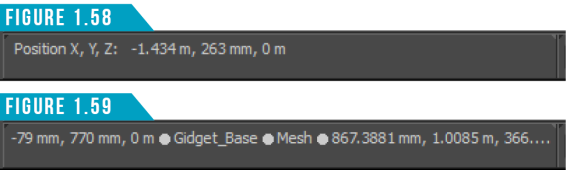
The 3D Tracking Info (Figure 1.58) displays valuable information but is often overlooked. This handy viewport is located in the lowerleft corner of the UI and displays 3D tracking information based on the cursor’s location.
Hovering over an item when in Item mode will briefly display the Item Name, Type and Size in the Status Bar. (Figure 1.59) Hovering over a component will briefly display the Item Name, Polygon Type and component Size in the Status Bar. Selecting a component with the cursor motionless will leave this information displayed until the cursor is moved.
Status Bar
The Status Bar (Figure 1.60) is located on the bottom edge of the UI and by default, displays the basic rules of using the mouse. Hovering the cursor over various elements in the UI will display info about those elements.

Timeline Viewport Toggle
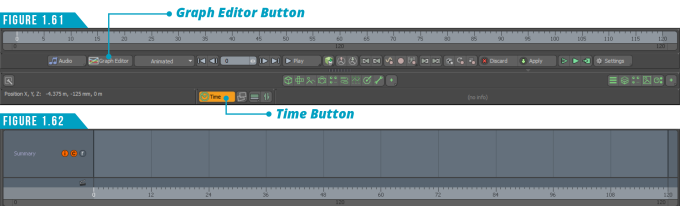
Clicking the Time button at the bottom of the Layout will display Modo’s Timeline (Figure 1.61). The Timeline allows you to control time in an animation. To animate any item over time, you only need to set a specific value at a point in time (known as a keyframe) and then move to a different point in time to set a new keyframe.
This quick video demonstrates accessing the Command History Viewport, Macro Recorder and Timeline.
This viewport also enables you to launch the Graph Editor as a floating window, and if you click on the top edge of the Time line and drag up, you can gain access to the Track View (also referred to as the Dope Sheet). (Figure 1.62)
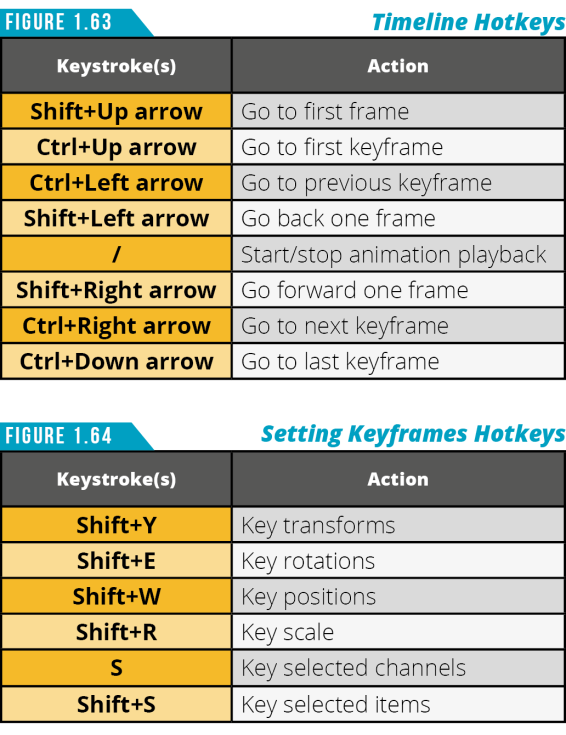
Both the Graph Editor and Track View provide alternate methods for creating and editing keyframes. To speed up working with the Timeline and setting keyframes, take advantage of the keyboard shortcuts in (Figure 1.63) and (Figure 1.64).
Palettes Popover
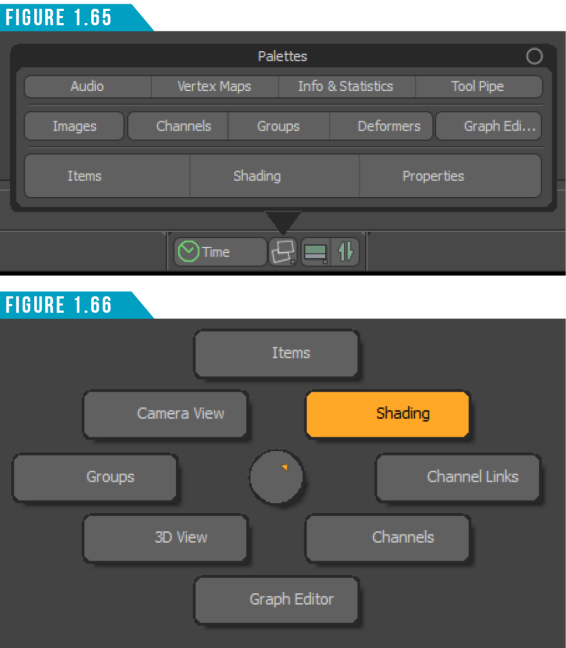
The Palettes Popover (Figure 1.65) is located to the left of the Status Bar. Clicking the icon will display a popover which gives you quick access to opening common palettes such as the Graph Editor and Deformers List. For a complete list of palettes to choose from use (Layout/Palettes) from the Application Menu. You can also access eight palettes using the hotkey (Alt+`(backtick)) to open a Palettes Pie Menu (Figure 1.66).
Kits Popover
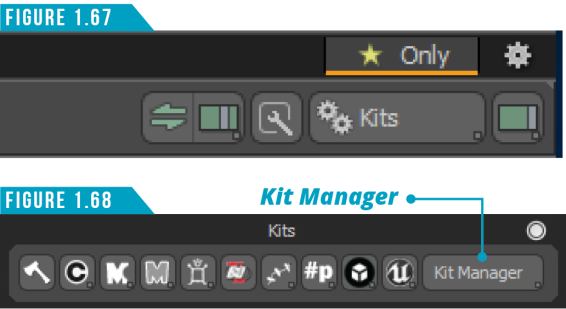
Kits are additional tools that can be added to Modo to extend its functionality. Some Kits ship with Modo such as the Unreal Bridge and Sketchfab kits. Additional kits can be freely downloaded from the Foundry site such as the After Effects IO, FlexFuse, GoZ, and Makerbot kits. You can also purchase third-party kits such as MOP Booleans, Polystein and more.
The Kits Popover (Figure 1.67), located in the upper-right corner of the interface, gives you access to these add-ons. Clicking the Kits button will display the kits you have installed and give you the ability to enable and disable kits as well as set their visibility using the Kit Manager. (Figure 1.68)