Search Tips
Creating Outputs
Firstly, add and define outputs for each RenderNode. These can be managed in the Output pane within the Output Map panel.
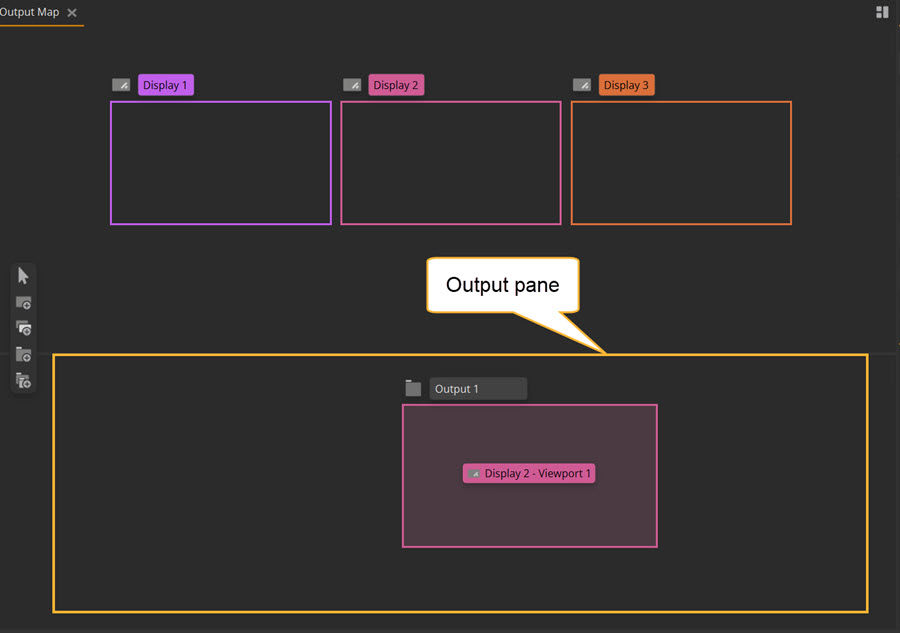
| 1. | Go to the Outputs workspace > Output Map panel. |
| 2. | Click the add Output button ( ). ). |
Tip: If you want to make multiple outputs, click the Multi-add output button ( ) and define the number of outputs you want to create. Click Finish for the multiple Outputs to be created.
A new Output appears in the Output pane:
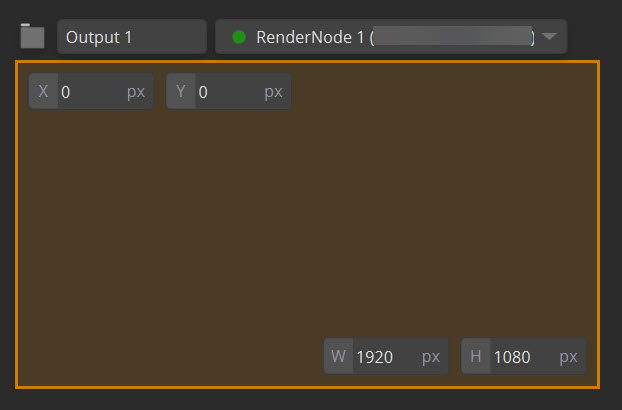
Output options:
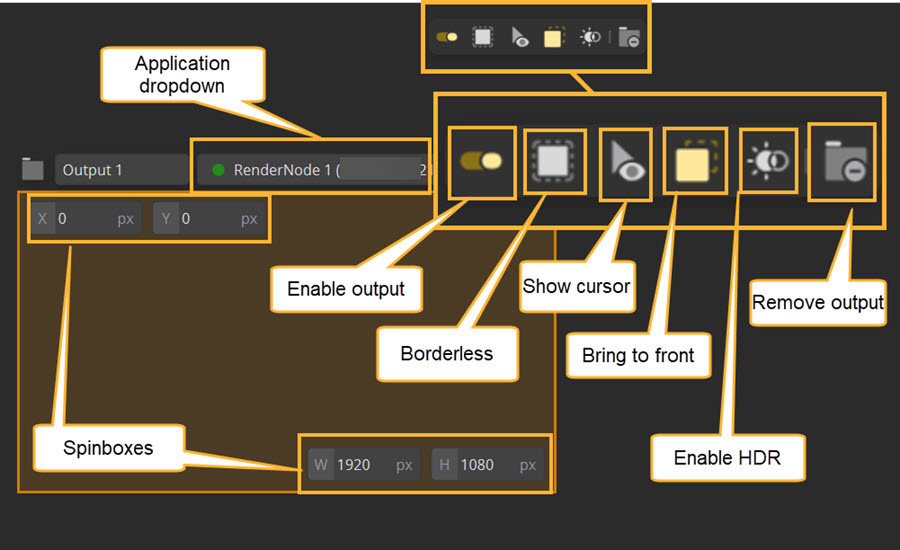
| 3. | Configure your output options: |
• In the Application dropdown, select which render node this output is representing. You can additionally do this from the Project Graph.
• You'll need to define the size of your output for each RenderNode using the the spinboxes, found in the top-left and bottomright of the output. For outputs between machines to successfully sync, this output’s size should be the exact size of the RenderNode’s Windows display even if you’re only using a subsection of that Windows display. Any subsections can be defined using viewports in Nuke Stage. This is covered in Creating Displays and Viewports.
• Another requirement to successfully achieve sync between machines is to set the Output to Borderless.
• Enable HDR if using. for more information on HDR setup, go to HDR setup for Nuke Stage.
• If you need to be able to see the mouse cursor on your output machine, enable the show cursor button.
• There are additional settings that can be found at Project Graph > Hardware > Output Properties > Parameters > Advanced. It’s recommended to leave Enable vsync and Enable framelock as enabled. Tick HDR if your setup requires it.
You can also do this configuration from within the Project Graph. Further information about each option can be found at Outputs Controls.