 Search Tips
Search is based on keyword.
Ex: "Procedures"
Do not search with natural language
Ex: "How do I write a new procedure?"
Contact Support
Setting Preferences
Displaying the Preferences Dialog
Open the Preferences dialog by pressing Shift+S. The preferences available depend on which mode Nuke is launched in.
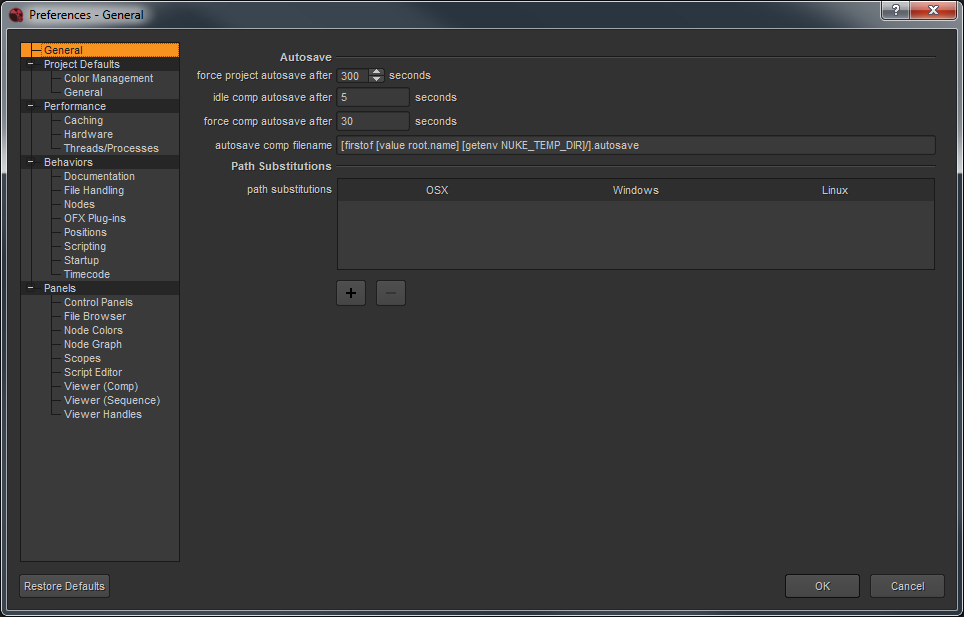
Changing Preferences
The function of each preference is described under Preferences.
When you make a change to a preference, in most cases, the interface registers the change immediately (for example, an interface element displays in the new color). Some preference changes, such as Performance > Hardware > default blink device, require you to restart Nuke Studio, for the changes to take effect.
Saving Preferences
Nuke stores your preference settings in a file called preferences11.2.nk, which resides in your .nuke directory. The location of this is dependent on your operating system.
• Linux: /home/login name/.nuke
• Mac: /Users/login name/.nuke
• Windows: drive letter:\Users\login name\.nuke
Note: On Windows, .nuke resides in the directory pointed to by the HOME environment variable. If this variable is not set (which is common), the .nuke directory is under the folder specified by the USERPROFILE environment variable.
Each Nuke user can maintain his or her own unique settings. After making a change in the Preferences dialog, you can simply click OK to save and close your preferences. If you click Cancel, any changes that you made are not saved.
To save your preferences
Make the desired changes inside the Preferences dialog, then click OK. Nuke writes the new settings to preferences11.2.nk file, which you can find in the .nuke directory:
• On Windows: The .nuke directory can be found under the directory pointed to by the HOME environment variable. If this variable is not set (which is common), the .nuke directory is under the folder specified by the USERPROFILE environment variable - which is generally of the form drive letter:\Documents and Settings\login name\ (Windows XP) or drive letter:\Users\login name\ (Windows Vista).
To find out if the HOME and USERPROFILE environment variables are set and where they are pointing at, enter %HOME% or %USERPROFILE% into the address bar in Windows Explorer. If the environment variable is set, the folder it’s pointing at is opened. If it’s not set, you get an error.
• On Mac: /Users/login name/.nuke
• On Linux: /users/login name/.nuke
Your new preferences remain in effect for the current and all subsequent sessions.
Resetting Preferences
To reset any changes you made simply click Restore Defaults in the bottom-left of the Preferences dialog. You can reset the preferences to default by deleting the preferences11.2.nk file. After doing this, the next time you launch Nuke, it rebuilds the file with the default preferences.