 Search Tips
Search is based on keyword.
Ex: "Procedures"
Do not search with natural language
Ex: "How do I write a new procedure?"
Contact Support
Adding a Drop Shadow
The DropShadow gizmo allows you to create a drop shadow for any input image that has an alpha channel with values greater than 0. To add a drop shadow an image:
| 1. | Select Filter > DropShadow to insert a DropShadow gizmo after your image Read node. |
| 2. | Connect your background image to the DropShadow gizmo's bg input. Your image and drop shadow are merged over the background image. |
| 3. | In the DropShadow gizmo properties, check enable drop shadow to enable the drop shadow effect. |
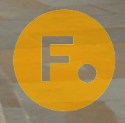
|
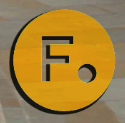
|
| with drop shadow disabled |
with drop shadow enabled |
| 4. | If you want the drop shadow to be the same color as the input image, enable inherit input color. |
Otherwise, use the color controls to select a color for the drop shadow.
|
|
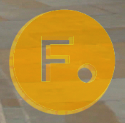
|
| with black selected | with the inherited input color |
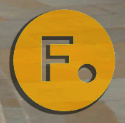
| 5. | Use opacity to adjust the opacity of the drop shadow relative to the input's alpha channel. |
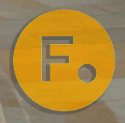
|
|
| Opacity set to 0.4 | Opacity set to 0.8 |
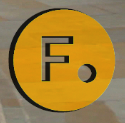
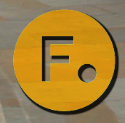
| 6. | To adjust the direction of the shadow, use the angle slider. A value of 0 or 360 equals left direction. |
|
|
|
Angle set to 0 |
Angle set to 225 |
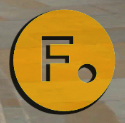
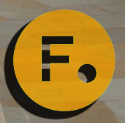
| 7. | Use distance to set the distance of the shadow from the input content. |
|
|
|
Distance set to 5 |
Distance set to 15 |
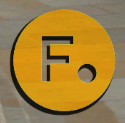
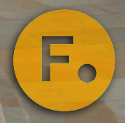
| 8. | If you want to blur the shadow, increase the softness value. |
|
|
|
Softness set to 0 |
Softness set to 10 |
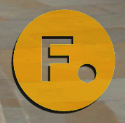
| 9. | If necessary, set the shrink/expand slider to a negative value to erode the shadow or a positive value to dilate it. |
|
|
|
Shrink/expand |
Shrink/expand
set to 3.5 |
| 10. | Use the input [operation] bg dropdown menu to select how you want to combine the input and bg inputs. |