New 3D Scene Basics
Similar to the Classic 3D System, there are some essential concepts to setting up your scene in the node graph. In the New 3D System, GeoScene node receives the output from the geometry nodes and sends the composite of those objects to the ScanlineRender node, where the output is converted back to 2D.
An example of a simple scene:
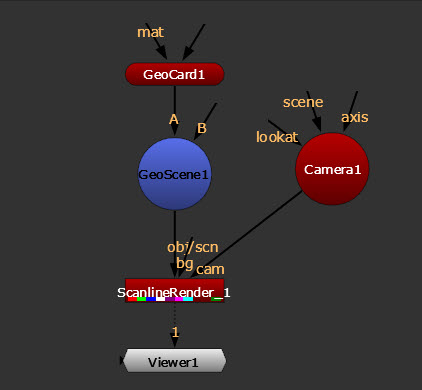
Note: To bring in geometry, you can import it - see Importing into Your Scene. Or you may prefer to create geometry directly in Nuke - see Creating Geometry Prims.
The GeoScene Node
The GeoScene node combines all your elements in one 3D workspace - the geometry, cameras, lights, and materials, bringing them together into the scene. GeoScene accepts “axis op” inputs and is the only node that can do this. Essentially any circular shaped node is an “axis op” as it is based on an Axis - this includes Camera, Axis, DirectLight, SpotLight, EnvironmentLight, PointLight.
While GeoScene is the node where you combine all your scene elements together in one place, GeoMerge is what you can use to combine all your geo node data together and define how your layers are composed.
Note: GeoMerge has a variety of merging controls, but be aware that there are some USD behaviors which can affect how you use this node for merging. See more at Merging 3D Data.
The ScanlineRender Node
The ScanlineRender node allows you to toggle between a 2D and 3D view of the scene, and accepts cam inputs directly from the Camera.
Note: See more about this node at Rendering in the New 3D System.
Note: ScanlineRender's classic 3D system equivalent is also named ScanlineRender. For New 3D System scenes, make sure you are adding the New 3D System node (found in right click node menu under 3D > 3D), not the Classic one (3D > 3D Classic).
 To Add a ScanlineRender Node
Connect the ScanlineRender obj/scn input to a GeoScene or geometry node.
Connect the cam input to the main camera.
Connect the optional bg input to composite a background image into the scene.
Press Ctrl+I (Cmd+I on a Mac) to open a new Viewer to display the output of the ScanlineRender node.
When an image is connected to the bg input, its resolution becomes the output resolution for the ScanlineRender node.
The Camera Node
Camera nodes may be connected to the GeoScene node or the ScanlineRender node. The camera connected to the ScanlineRender node is the camera used for rendering.
Drag an output connector from the Camera node to a GeoScene node or connect the Camera node to a ScanlineRender node’s cam input.
Note: See Working with Cameras in the New 3D System to learn more about using cameras in your scene.
Any additional cameras should be connected to the GeoScene node. When you have multiple cameras associated with a 3D scene, you can switch between them by selecting the viewing camera from the dropdown menu at the top of the Viewer. See Look Through Camera to learn more.