Search Tips
Contact Sheet in Nuke Studio
This section covers how Contact Sheet works in Nuke Studio, Hiero, and HieroPlayer.
Contact Sheet allows you to quickly view multiple shots from a sequence, for artistic, comparison, and review purposes.
Contact Sheet is designed to offer a fluid and dynamic user experience, with the ability to add shots to the Contact Sheet Viewer using three different modes - Show Manually Selected, Show Tracks, and Tag Filter.
You can then view the Contact Sheet in a variety of ways, such as playing shots back using the timebar, using Stack View to quickly view a single cell view, and the HUD to view metadata text overlay.
Each sequence can be opened in the Contact Sheet independently. You can adjust the Contact Sheet Settings per sequence and these will save and restore when you close and reopen your project.
You can also customize your Contact Sheet defaults and HUD defaults in Preferences (Preferences > Panels > Contact Sheet > HUD Overlay), and can drive it with Python using the API for further flexibility.
Contact Sheet Overview
In the example below we have a sequence open and some shots have been selected to be displayed in the Contact Sheet.
The Contact Sheet buttons and menu items are shown below:
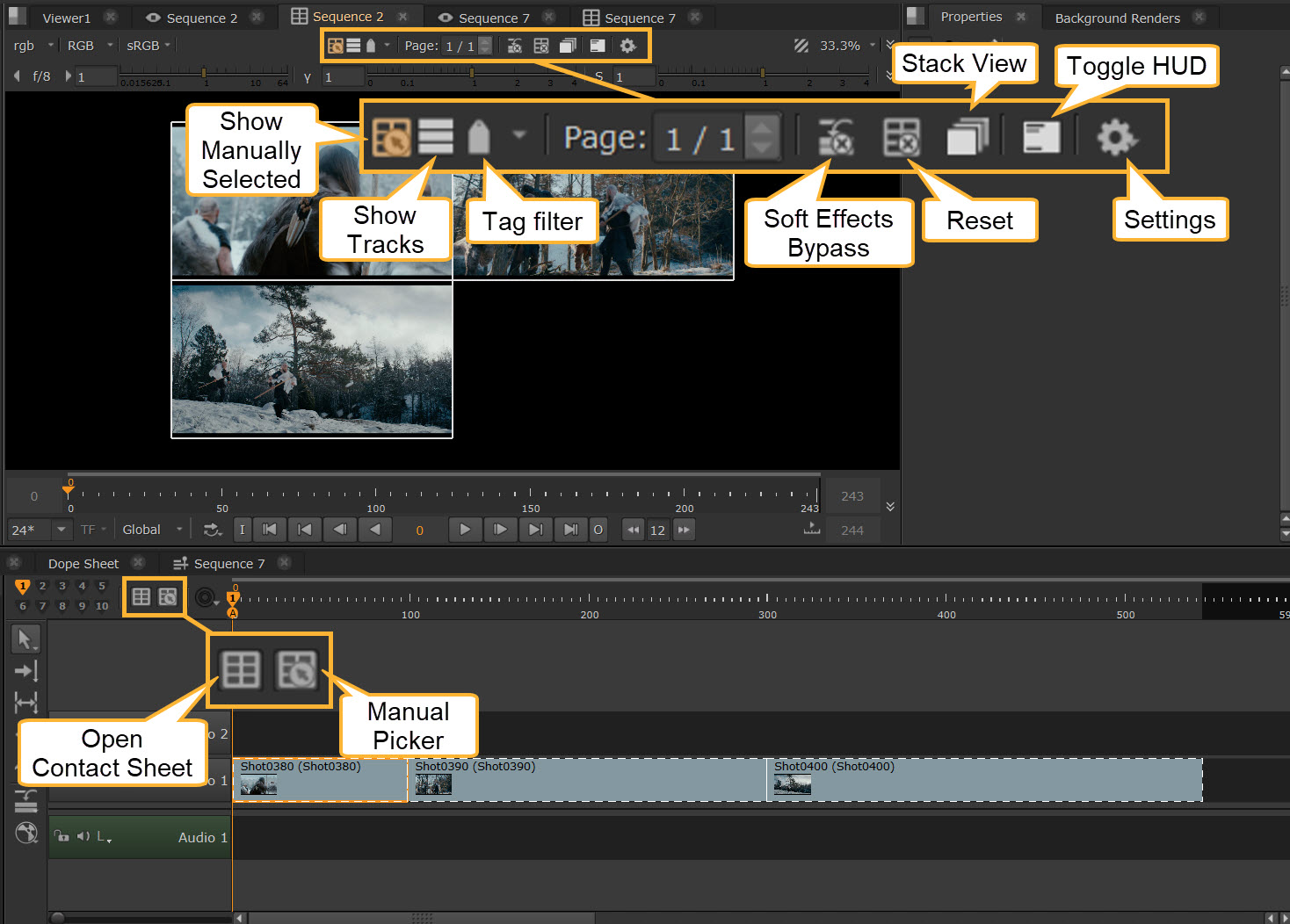
• Open Contact Sheet  - This button opens the current sequence in Contact Sheet.
Tip: To do the same action, you can also right-click your sequence in the project bin and select Open In > Contact Sheet Viewer.
Tip: You can easily find your existing Contact Sheets via the Windows tab  .
.
• Manual Picker  - The Manual Picker button lets you manually select shots in the sequence to be displayed in the Contact Sheet Viewer. See more about the Manual Picker at Using Contact Sheet: Manual Picker.
• When the Manual Picker button is inactive (gray), normal hard selection and editorial tools are active in the Edit toolbar. Any shots selected obey the usual hard selection methodology and are not displayed in the Contact Sheet Viewer.
• When Manual Picker button is active (highlighted), you can select shots in the sequence that you want displayed in the Contact Sheet Viewer. Any selections made are only for Contact Sheet use and do not interfere or affect any current hard selections made in the sequence before activating the Manual Picker.
Tip: The easiest way to select shots with the Manual Picker is to click and drag your mouse over multiple shots.
• Show Manually Selected  - In the Contact Sheet toolbar at the top of the Viewer, this option is active and highlighted by default, indicating that the manually selected shots (selected via the Manual Picker) are being displayed in a grid by the Contact Sheet. If you select either of the alternative modes, Show Tracks or Tag Filter, it is deactivated. Read more about the different modes at Using Contact Sheet: Viewing Contact Sheet.
• Show Tracks  - Select this option to switch to show tracks. This loads all visible timeline tracks as cells at the current playhead. If a track is visible but contains no content at the current playhead position, its cell is present but displays black.
Note: Show Tracks is available in Nuke Studio and Hiero, but not in HieroPlayer.
• Tag Filter  - This option enables you to switch to displaying shots that are using tag filtering. The right-hand side drop down icon, when pressed, will show a list of all tags currently being used in the sequence and check boxes to allow for boolean operations. See more about tag filtering at Using Contact Sheet: Tag Filtering.
Note: Tag filtering is available in Nuke Studio and Hiero, but not in HieroPlayer.
Tip: Use keyboard shortcut Shift + H to cycle between Show Manually Selected, Show Tracks, and Tag Filter modes.
• Pages  - This button works in conjunction with the Max Row Count and Max Column Count options found in the Settings. This is set by default to a 5x5 grid able to accommodate 25 shots per page. If a selection of more than 25 shots are selected to be displayed in the Contact Sheet, then any shot count above 25 is automatically added to a second page until this is populated. The page count increments to display how many pages there are, and the up and down arrows are used navigate between the pages, as well as the Shift + { and Shift +} hotkeys. By using 1-0 keys in the main part of the Viewer you can switch between the first 10 pages.
• Soft Effects Bypass  - The Soft Effects Bypass button bypasses any track-based soft effects to enable you to quickly disable these effects without having to modify the sequence. This only affects the Contact Sheet Viewer. Viewing the sequence in the Timeline Viewer still shows any track-based soft effects. See more about this at Soft Effects Bypass.
• When this button is inactive (gray), the Contact Sheet Viewer displays any track-based soft effects in the sequence being used to populate the Contact Sheet.
• When this button is active (highlighted), the Contact Sheet Viewer bypasses any track-based soft effects in the sequence being used to populate the Contact Sheet.
Note: Soft effects are available in Nuke Studio and Hiero, but not in HieroPlayer.
• Reset  - The Reset button quickly clears the Contact Sheet of all clips and resets to its initial state. Selecting this button clear all active clips selected by the Manual Picker, as well as all tag filter states. The function can't be undone.
• Stack View  - This button collapses the grid to a single full-frame cell at a time. You can load as many clips as you need and step through them with 1-0 hotkeys to move between the first 10 pages, or Shift +{ and Shift + } hotkeys change to the next and previous pages.
• Toggle HUD  - Enables HUD text on track items. Overlays clip name, version, shot name, and track directly onto each cell, fixed to the corners and legible at any zoom level. These are editable in the Settings cog menu.
• Settings  - The Contact Sheet Settings cog menu displays options that affect the way the Contact Sheet functions.
Currently this includes:
• Output Resolution - Customize the Contact Sheet resolution. Modifying this can affect the quality of the images currently being displayed. You can also set custom resolutions that can be useful when used in conjunction with the Max Row Count and Max Column Count options.
• Max Row Count and Max Column Count - These two values allow you to customize the layout of the Contact Sheet. Together the two values effectively set a maximum amount of shots that can be displayed per page, i.e the default of 5 rows and 5 columns allows for a Contact Sheet of 25 shots per page.
• HUD Overlay - Change what is shown on the HUD overlay text, as well as the text scale and color. The information displayed in the corner of each cell can be customized with TCL expressions.
Tip: By adjusting the Max Row Count & Max Column Count in combination with Output Resolution, you can optimize the amount of shots and their scale displayed and create bespoke layouts for review. See more about layouts at Using Contact Sheet: Viewing Contact Sheet.
Using Contact Sheet
To learn how to use the Contact Sheet, see the following pages:
|
• Using Contact Sheet: Manual Picker |
Additional Considerations
Performance
The performance of the Contact Sheet feature in Studio 17.1v1 depends on the specification of the host computer that Studio is being run on, storage and network performance as well as the format of media sources being used.
Currently, there is no specific Contact Sheet Disk Caching so real time playback depends on the amount of shots being displayed in conjunction with the available RAM cache allocated in preferences.
Integration with Existing Features
Contact Sheet is compatible with existing timeline soft effects, although multiple stacked soft effects and BlinkScript effects may impact responsiveness.
Annotations are not currently displayed and it is not possible to annotate directly onto the Contact Sheet Viewer.
A/B compare modes are not supported in the Contact Sheet Viewer.
Exporting Contact Sheet is not currently supported.