Matching 3D Geometry with 2D Footage
First, you need to tell ProjectionSolver which points in the 2D footage go with their counterparts on your 3D model. Do the following:
|
1.
|
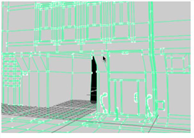
Use the 3D vertex selection tool  in the Viewer to select a vertex on the 3D model. in the Viewer to select a vertex on the 3D model. |
|
2.
|
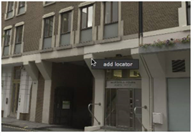
Go to your 2D footage and right-click add locator on the 2D point for the vertex. |
|
|
|
| Selecting a vertex in 3D. |
Adding a locator in 2D. |
|
3.
|
Repeat steps 1 and 2 until you have at least 6 locators on the frame. |
|
4.
|
Create keyframes for the locators under the Locators tab. Click the Animation menu  for each 2D locator and select set key. You can also click the Key All Locators button to key all your locators at once. Note that you don't have to create keys to solve a single frame. for each 2D locator and select set key. You can also click the Key All Locators button to key all your locators at once. Note that you don't have to create keys to solve a single frame. |
|
5.
|
Go to the next frame and move the 2D locators to the correct position in the Viewer, thereby creating a 2D track. |
You should add at least 6 locator points to match the 2D footage and 3D model with each other. You get a much better result if you create 8 locator points though, and if you want to ensure great results, you’ll want to create about 10-12 locator points.
TIP: When solving multiple frames, the locators do not have to be keyed at every frame. Only the keyed locators are used to solve each frame.