Search Tips
O_NewView Example
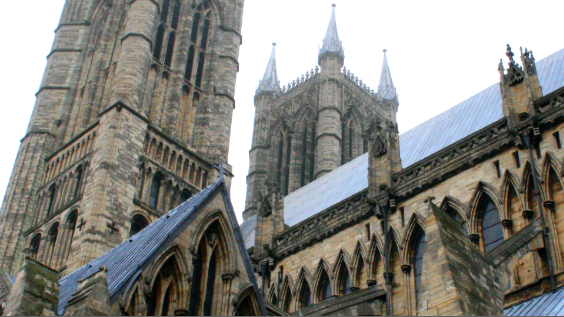
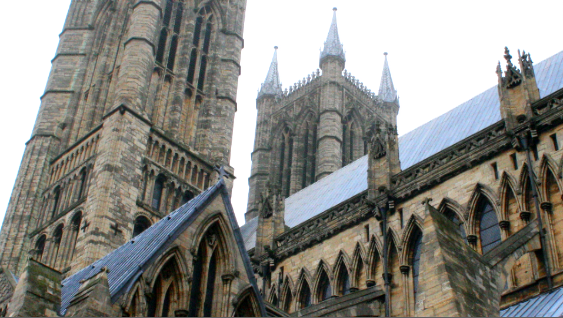
In this example, we have a stereo image of a cathedral. In the left view, one of the cathedral windows is missing. Our aim is to reproduce the missing window from the right view into the left view using O_NewView. To do this. we can use O_NewView to produce a completely new left view, using the pixels from the right view.
The stereo image used in the example can be downloaded from our website. For more information, see Example Images.
The necessary disparity channels have been embedded in the download image, so you don’t need to insert an O_Solver node and an O_DisparityGenerator node in this example.
Step by Step
| 1. | Launch Nuke and open the project settings (press S on the Node Graph). Go to the Views tab and click the Set up views for stereo button. |
| 2. | Import cathedral1.exr and attach a Viewer to the image. Switch between the left and the right view using the Viewer controls (or the ; and ' hotkeys). Notice that the cathedral is missing a window in the left view, as shown below. |
|
|
|
|
The left view. |
The right view. |
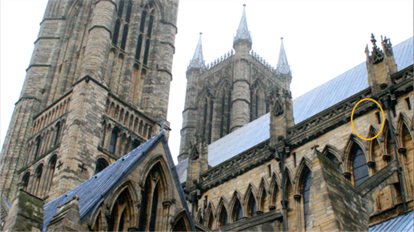
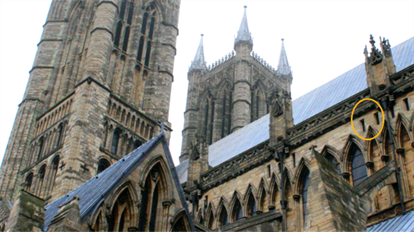
We want to build a new left view to replicate the additional window, using the O_NewView node.
| 3. | Select Ocula > Ocula 4.0 > O_OcclusionDetector to insert an O_OcclusionDetector node after the stereo image. |
| 4. | Select Ocula > Ocula 4.0 > O_NewView to insert an O_NewView node after the O_OcclusionDetector node. |

| 5. | In the O_NewView controls, select Left from Right from the View to Build menu to generate the new left view using the right view as a source. The image below shows the new left view. As you can see, it now includes the window that was previously missing. |
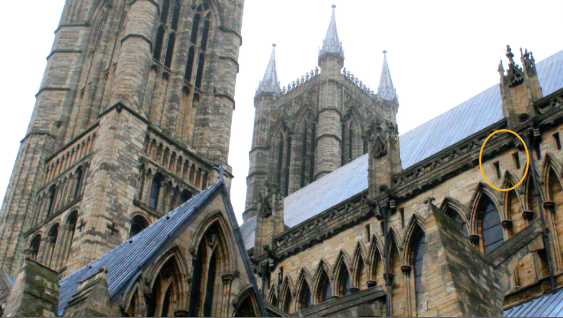
| 6. | Select the Pass through other view checkbox. This means both the new view and the original source view are output. |
| 7. | Using the Viewer controls, switch between the left and the right views. The window that was previously missing from the left view, is now present in both views. |
|
|
|
|
The new left view. |
The original right view. |