Search Tips
Light Linking and Shadow Linking
Light linking allows you to light a set of objects while others aren’t or turn off the lights on a set of objects while the others are lit. Within UsdGaffer’s properties, a Linking tab allows you to create and edit light, shadow, and filter linking relationships. The UsdGaffer supports setting these relationships within this tab, as well as showing any incoming light and shadow linking properties that may be set upstream.
Note: This tab is also available in the UsdSuperLayer node when working with light prims.
Under lightLink and shadowLink, you can add prim paths. For example you may wish to link geometry prims to a light.
The easiest way to do this is to middle mouse click and drag and drop a prim from the Scene Explorer into the includes or excludes section via Add Statements or Add Locations.
For example, this geometry prim (the /Head of the robot) has now been linked to the /cylinderlight under excludes. This would mean the light will shine on everything apart from that path.
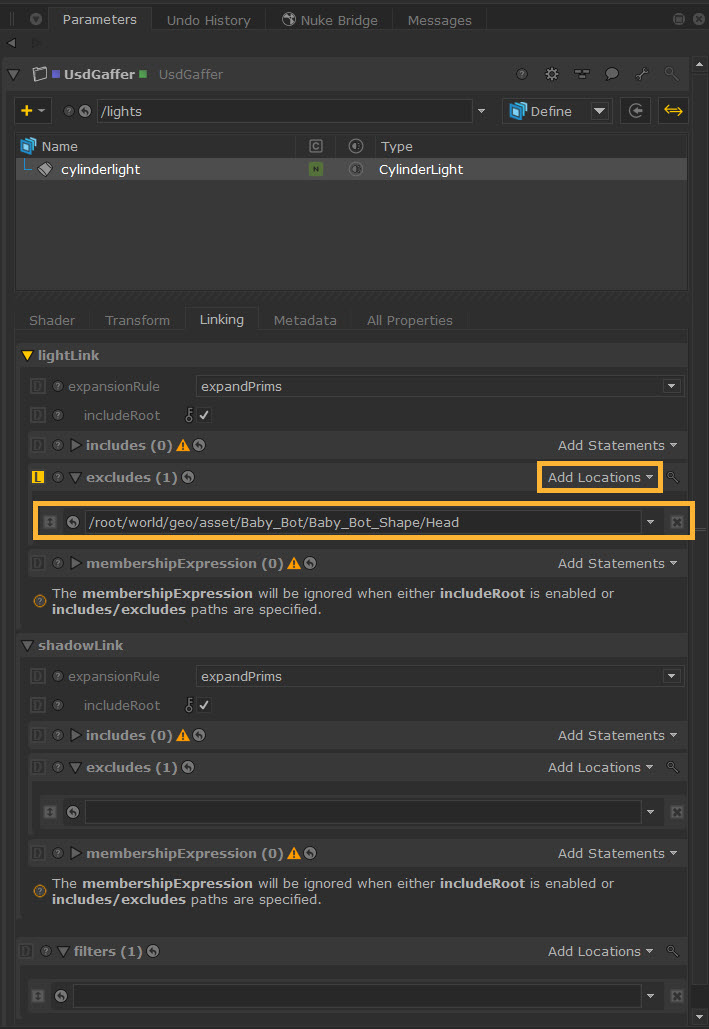
Similarly to collections in USD, prims can be added through either relationship or membership expressions. Since light and shadow linking properties are collections, they can then be found in the Scene Explorer tab through the Collections Panel, after selecting the light’s Collections Working Set.
Note: Read more about Collections in the Scene Explorer.
In USD’s defaults, the includeRoot property within the light/shadow linking collections is enabled. This is a Boolean attribute indicating whether the pseudo-root path / should be counted as one of the included target paths. This separate attribute is required because relationships cannot directly target the root.
Note: The membershipExpression mode will be ignored when either includeRoot is enabled or includes/excludes paths are specified.
Warning: Any collections that have been created via UsdGaffer or UsdSuperLayer can also be modified with UsdCollection node but there may be inconsistencies between them. For example, when creating a lightLink or shadowLink collection using the UsdCollection node, it will show includeRoot as false by default. However, it should be true for lightLink, shadowLink and filters collections, as explained above. To workaround this issue, you will need to override the includeRoot parameter manually.
Tip: The Linking tab also supports light filters, via the filters property. Read more about light filters at Using Light Filters.