Search Tips
Reviewing the Preset Brushes
Mari comes with a set of preset brushes. To access them:
| 1. | Open the Shelf palette. |
The preset brushes display and are collected into tabs.
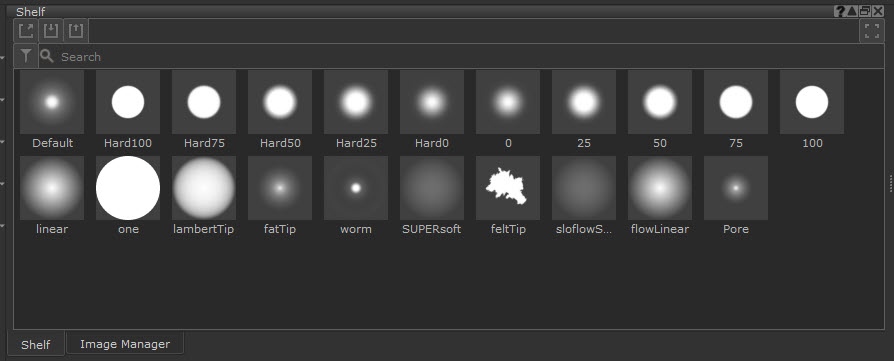
| 2. | Click through each tab and familiarize yourself with the different brushes that are available. |
| 3. | On the Tools toolbar, select a painting tool such as Paint, Blur, Vector Paint, Paint Through, Gradient, and Clone Stamp. |
| 4. | Open the Tool Properties palette. See Brush Properties for more information. |
| 5. | Try selecting some brushes from the Shelf palette and painting with them in the scratch pad of the Tool Properties palette. |
Tip: When you hover the mouse over a brush, tooltips display key properties: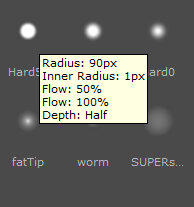
Tip: Select one of the preset brushes, and play around with the Radius, Opacity, Profile, and Jitter settings. Notice how each affects your brush strokes on the canvas or in the Tool Properties palette's scratch pad.