Search Tips
Manipulating Gaussian Splats
Manipulation of Gaussian Splats can be done using the Field Nodes. This is a way to create volumes that can be used to mask and manipulate 3D data.
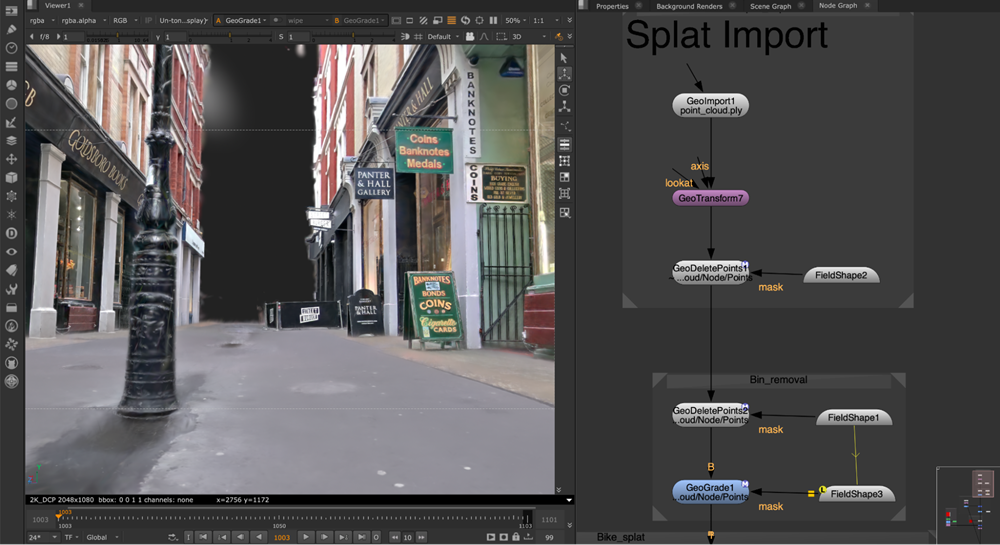
In this example, we show removing and adding elements to an imported Splat scene. This Splat has been imported via GeoImport - see Importing Gaussian Splats if you haven't already imported a splat.
| 1. | Before manipulating the splat, we are starting by using GeoTransform to rotate the imported splat. This can be helpful when setting up. See more about transformations at Transformations in 3D Scenes. |
| 2. | We first want to remove parts of the splat. To do this, first we are inserting a GeoDeletePoints and a FieldShape node. The FieldShape node is being used to create a mask for the GeoDeletePoints node, defining a section of our splat that we want to work within. |
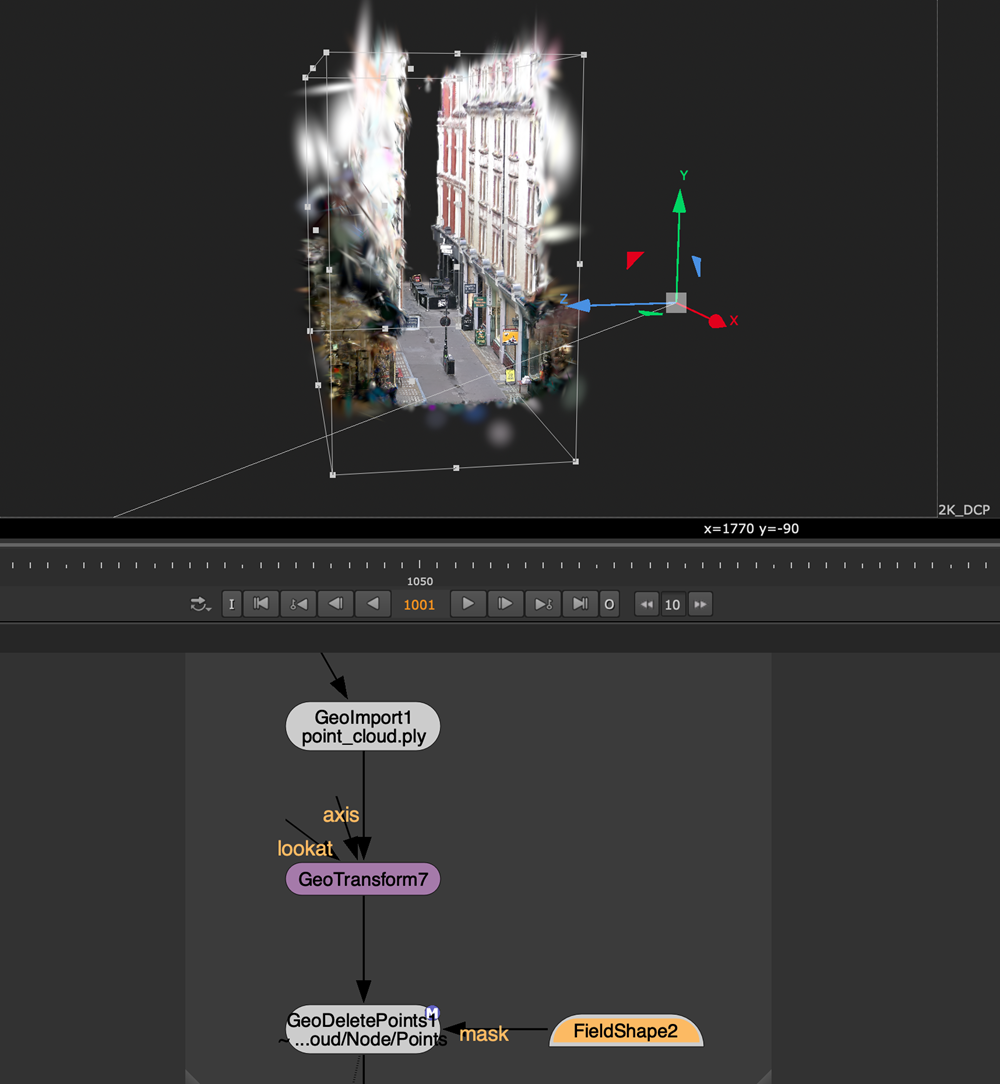
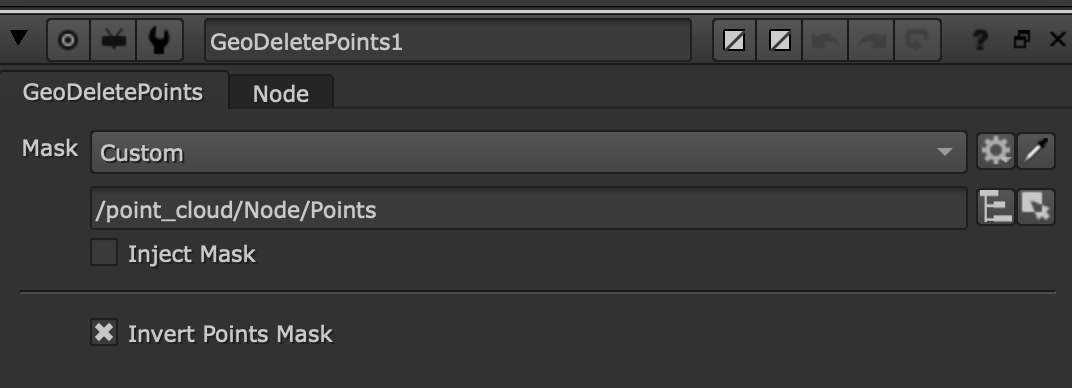
In the GeoDeletePoints, by enabling Invert Points Mask, points outside the mask will be deleted.
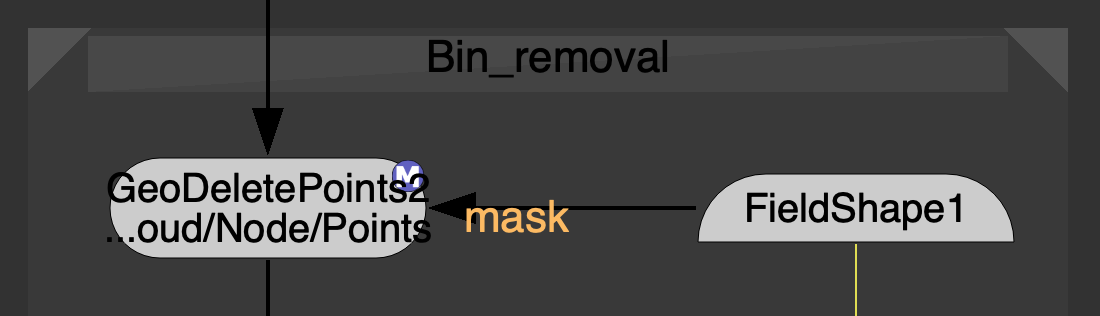
| 3. | This can then be done a second time, using another FieldShape to create a mask for another GeoDeletePoints node. This time the FieldShape targets the specific object to remove in the mask - in this case, the bin in the scene. |
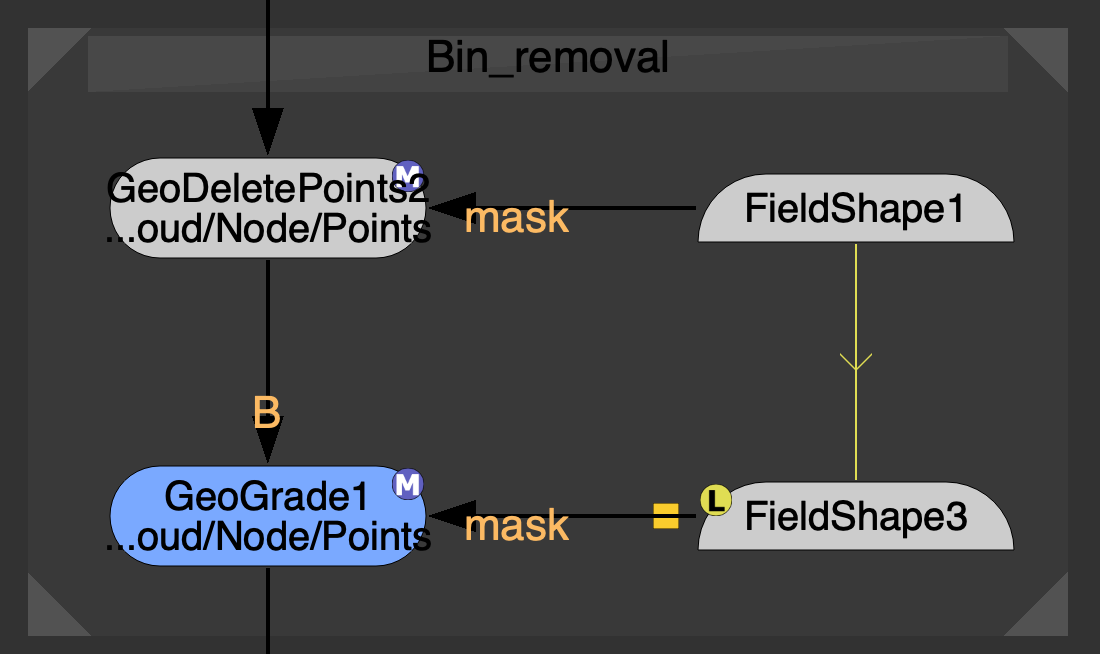
| 4. | To clean up the area where the bin no longer sits, we can use the GeoGrade node. |
In this example, we have targeted a section of the pavement where the bin was as a mask for the GeoGrade.
| 5. | Now that we’ve cleaned up our plate, we can also merge splats together as needed. To do this, we can use GeoMerge. |
Once you're happy with your scene, you can then render with SplatRender. See Rendering Gaussian Splats.
Note: See Field Nodes and LABS Nodes in the Reference Guide to see the full range of nodes you can use to manipulate splats.