Search Tips
Rendering with GeoRender
The GeoRender node allows you to render a 3D scene in Hydra 2.0. This node outputs delegate passes directly in Nuke that respect the settings applied in your delegate. This means that you can output the passes available in your delegate, like Normals and Depth directly in Nuke, to better integrate changes made to your USD scene in comp.
| 1. | Add a GeoRender node downstream of your scene. Connect your scene (usually a GeoScene node) to the scene input and connect a camera for rendering to the camera input. |
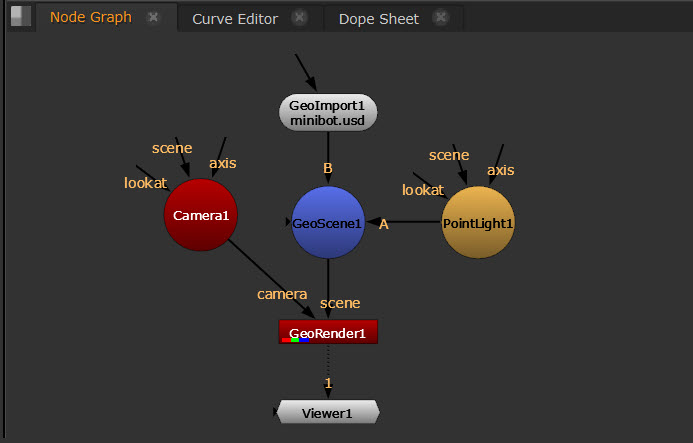
| 2. | Open the GeoRender Properties panel. The default renderer is GL. If needed, use the Renderer dropdown in the GeoRender to change render delegate. |
Note: Additional renderers can be setup by using the PXR_PLUGINPATH_NAME environment variable.
| 3. | The Render Settings tab is dynamically populated based on the renderer you select. This uses either the delegate settings API path or the USD schema path, depending whether Use Schema Mode setting is turned off or on. By default, the GL renderer has this option turned off, and uses the delegate settings rather than the USD schema. |
In this example, we are using Moonray, and keeping the Use Schema Mode option turned off.
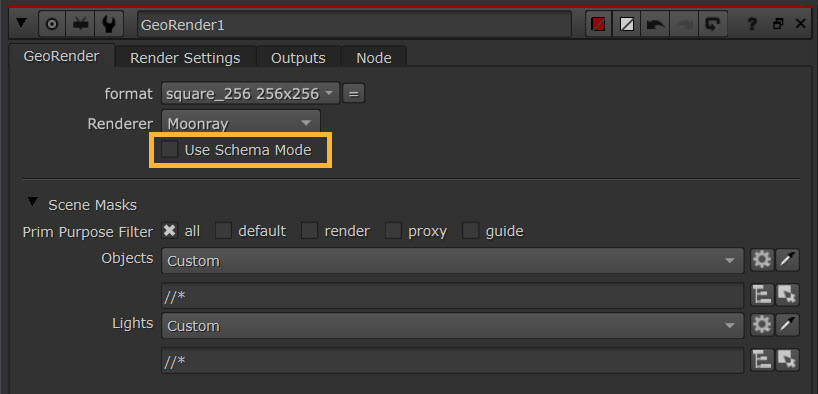
Keeping this off means that it's using the delegate settings API path, and the settings displayed in the Render Settings tab are dependent on what the delegate creator has provided to this path. For instance in Moonray, the following settings will be listed:
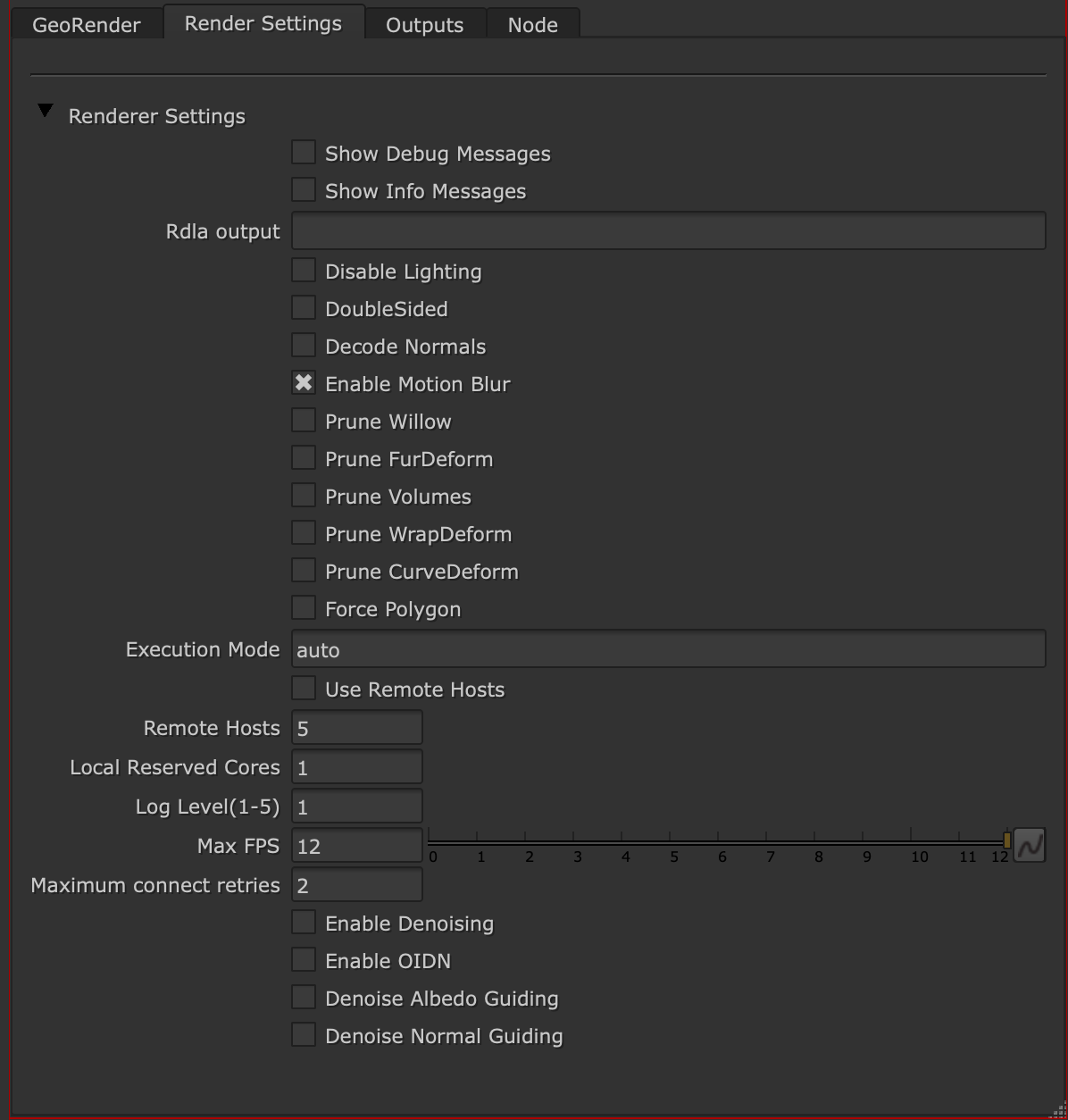
You can control your render outputs on the Outputs tab. The outputs of your delegate are given based on the Hydra defaults that exist in the delegate schema. Read more about these options in the reference guide - GeoRender.
Other delegates, such as Pixar's Renderman, may require the USD schema, where the Use Schema Mode option should be turned on. This allows for the default render settings and outputs displayed to be specified in the config of your USD scene. Use Schema Mode is required for renderers that support RenderSettings prims.
If a schema has been created in your USD scene you will see them in the Scene Graph under the Render section, and any Variables specified under your RenderProducts will be automatically displayed in the Outputs tab of your GeoRender node.
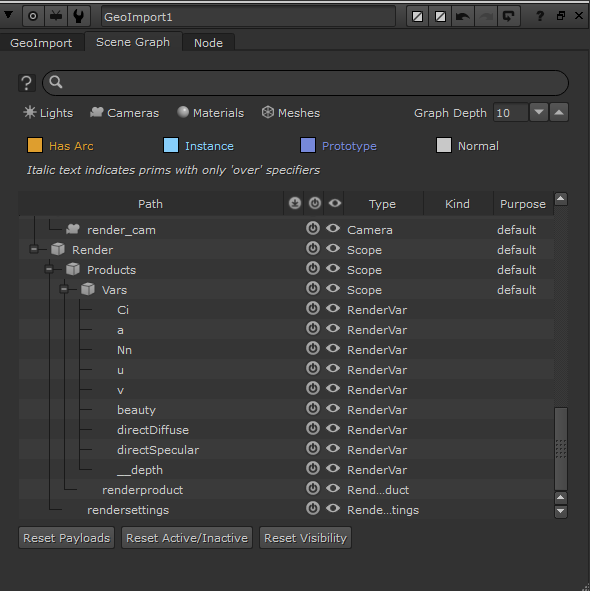
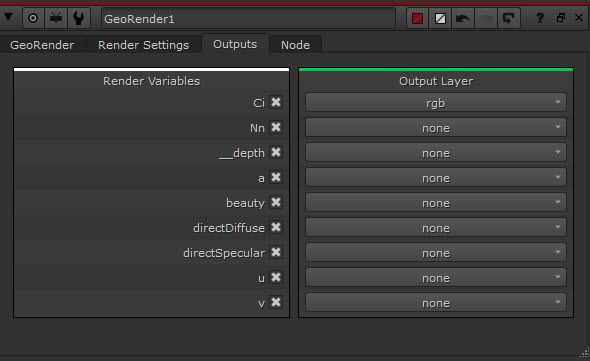
If nothing has been created in your USD scene, you will see no outputs or settings when you enable Use Schema Mode. If your schema is correctly populated in the format specified then it will auto-populate.
When the Use Schema Mode checkbox is enabled in your GeoRender node and no schema exists, you will need to provide a prim path to your Render Settings Prim and your Render Product Prim to populate your Render Settings and Outputs tabs. Use these fields to add your prim paths:

If you have not got render settings prims already that you can populate in this node, or you wish to edit the default existing render settings, there is also a manual way to edit or create render settings prims using Nuke nodes - the GeoRenderSetting node, as well as GeoRenderProduct and GeoRenderVariable nodes. Learn more about this at Creating and Editing Render Settings.
| 4. | Scene masking is also possible in GeoRender, so you can select masks to render only certain parts of your scene. In the Scene Masks section of the Properties panel, use the Objects and Lights knobs to select prims. |
Note: GeoRender does not render Nuke materials, only USD materials.
Note: Note that Hydra renderers require in-scene lighting to see materials. Read more about lighting at Light Your Scene.
| 5. | Toggle the Viewer back to 2D. This shows you a representation of the render in the Viewer. |
Note: Take a look at the GeoRender reference guide page to learn more about its controls.
Note: Some existing material assets may not display correctly when imported into Nuke if Hydra 2.0 does not recognize them. To fix this, you can use the GeoPython node. Learn more about this at Converting USD Assets for Hydra 2.0.
Render Nodes
Emulates real world cameras and can also project 2D textures.
Combines objects into a single scene for rendering.
Render 3D scenes with Hydra 2.0.
Renders all the objects and lights in a scene.
Render Gaussian Splats.