 Search Tips
Search is based on keyword.
Ex: "Procedures"
Do not search with natural language
Ex: "How do I write a new procedure?"
Contact Support
Exporting Texture from Layers
Instead of exporting work on whole channels, you may wish to export only a selection of layers by selecting them from the list in the Layers palette. As with channels, you can export multiple layers as they are in your layer stack or flattened into a single file.
From the Layers menu, select Export or Export Flattened.
| 1. | To export layers without flattening them: |
• from the Layers menu, select Export > Export Selected Layers to export the currently selected layers, or
• from the Layers menu, select Export > Export All Layers to export all layers in the layer stack.
| 2. | To flatten the layers before exporting them: |
• from the Layers menu, select Export Flattened > Export Selected Layers Flattened to flatten and export the currently selected layers, or
• from the Layers menu, select Export Flattened > Export All Layers Flattened to flatten and export all layers in the layer stack.
The Export dialog displays.
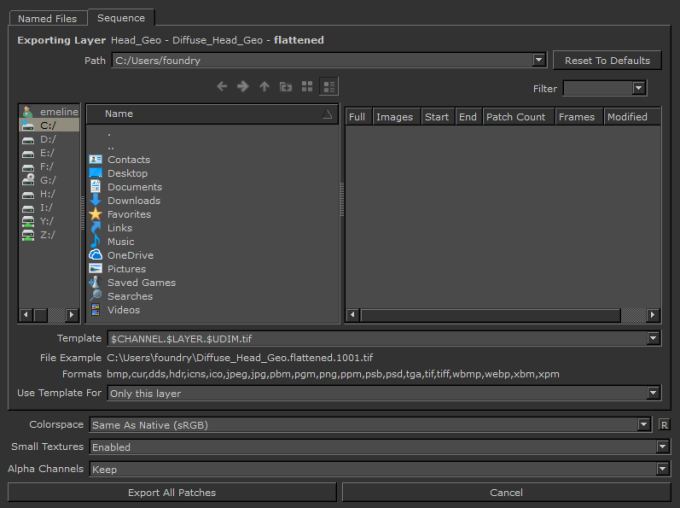
Note: The Named files tab does not display if your model contains more than 20 patches.
| 3. | Now you can select Exporting Individual Files or Exporting a Sequence of Files from this section. |
Note: Since exporting all the layers in a layer stack would be the equivalent of exporting an entire channel, the Export All Layers and Export All Layers Flattened options in the Layers menu exports the same result as the Export Current Channel and Export Current Channel Flattened options in the Channels menu.
Tip: The Export Flattened menu options are also available from the right-click dropdown menu on the main canvas and in the Layers palette.