Search Tips
PreviewSurface: USD Workflows
The PreviewSurface node is a representation of the “USDPreviewSurface” shader which is meant to model a “modern” physically based surface with both specular and metalness workflows. PreviewSurface supports these either by enabling or disabling the Use Specular Workflow control. It has a variety of inputs such as roughness, specular, emission, diffuse, as well as hidden inputs for opacity, normals, AOVs, displacement.
Warning: PreviewSurface node is still in Beta and may error when a texture input is connected. We suggest the use of the MtlXStandardSurface node.
In this example, we are using a PreviewSurface shader to add diffuse elements to an imported .usd prim.
| 1. | Import a .usd file into your scene with GeoImport. See Importing with GeoImport to learn more about this. |
| 2. | Use a Read node to add your texture source image and connect it to the PreviewSurface node’s diff input. |
| 3. | Connect the PreviewSurface shader node to the GeoBindMaterial’s mat input. |
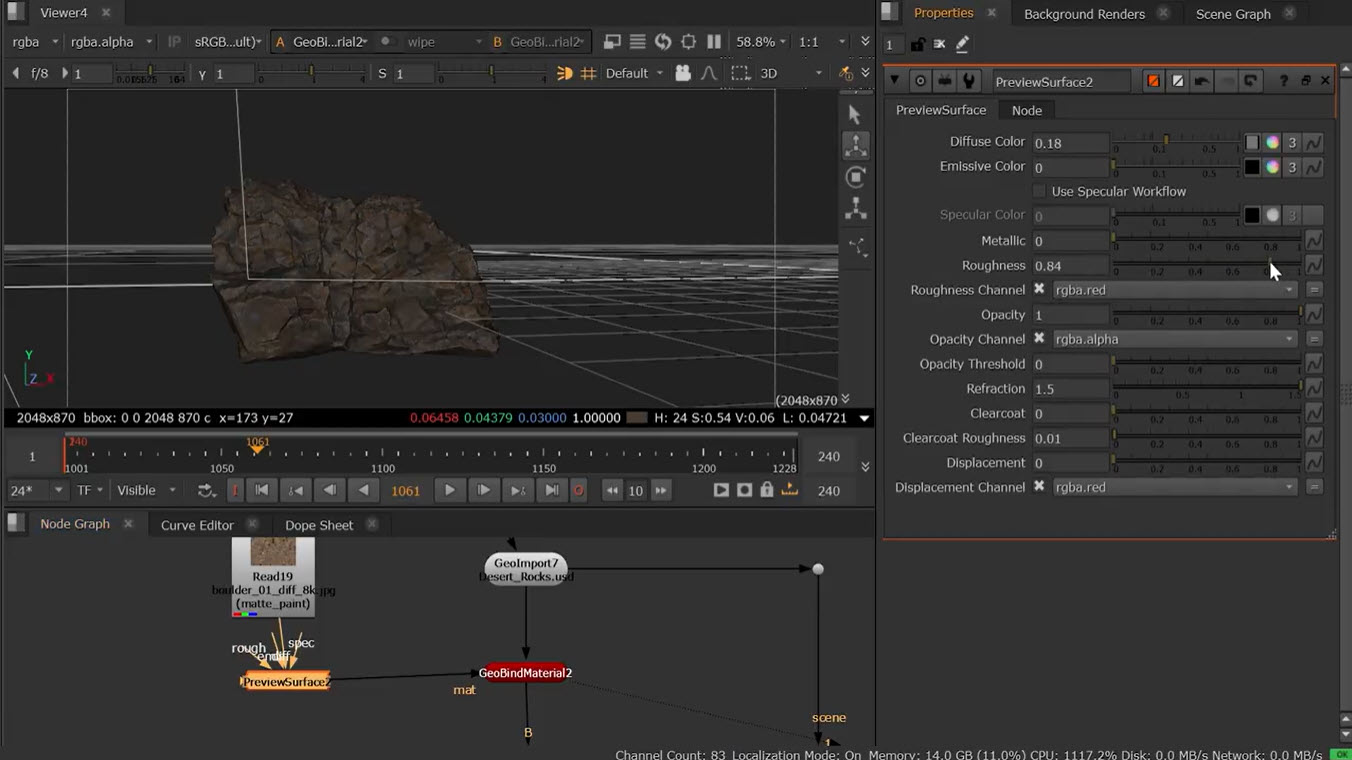
| 4. | Assemble the rest of your scene, for example with GeoScene and any lighting needed. |
| 5. | Adjust the knobs to achieve your desired effect. For example, here we are turning up the Diffuse Color to achieve a brighter surface. |
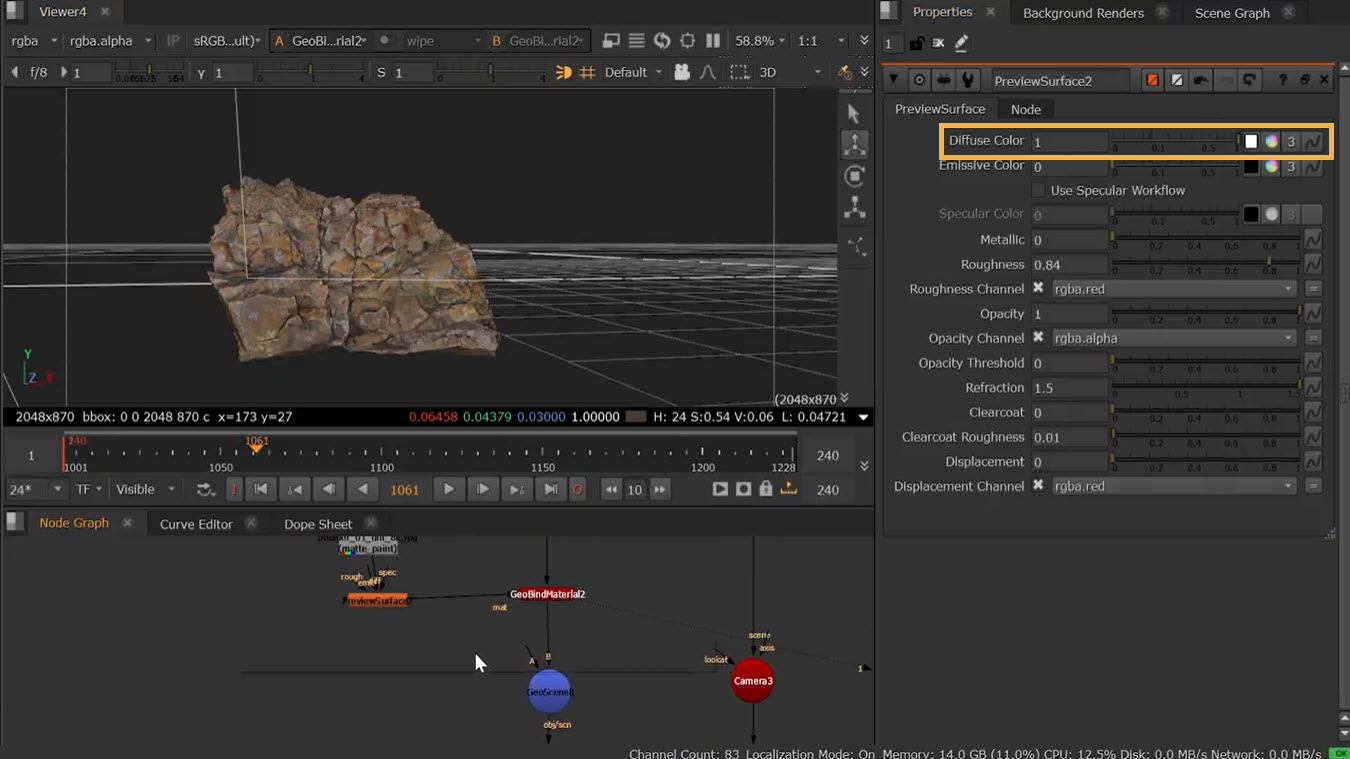
Note: With the Use Specular Workflow checkbox turned off, increasing the Metallic knob can create a shiny metal look, preferred by games pipelines. For a similar effect for film pipelines, you may prefer turn the Use Specular Workflow checkbox on, and instead adjust Specular Color.