Search Tips
What's New in Nuke, Nuke Studio, and Hiero 17.1
Gaussian Splats
Relighting
Integrate Gaussian Splats more seamlessly into your scene with new relighting techniques. Use SplatRender’s 2D rendering of DirectLight, PointLight, and SpotLight lights for volumetric-based relighting, no position or normals data needed.
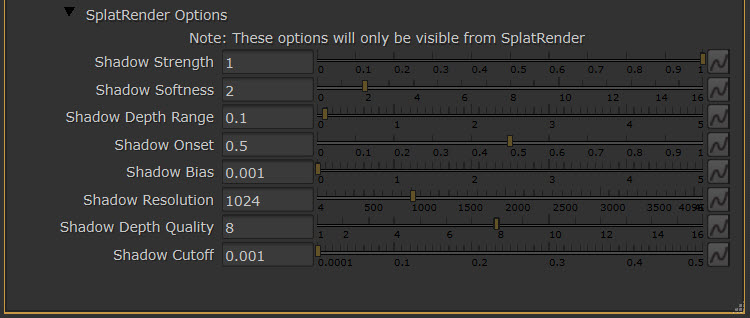
Use new shadowing controls to refine the shadows on your Splats — with new controls for:
• Strength — how strongly shadows darken the image.
• Softness — how much the shadow edges are blurred from the light’s point of view.
• Resolution — controls the detail level of shadow calculations.
• Bias — offsets the shadow away from the surface to prevent self-shadowing artifacts.
• Depth Quality — how many layers of transparency are tracked per shadow pixel.
• Depth Range — how much depth variation is tolerated when computing shadows.
• Cutoff — how dim the remaining light must get before an area is treated as fully in shadow.
• Onset — controls how deep into the surface shadows begin to take effect.
Learn more about Relighting Gaussian Splats.
GeoSequencer node
Ingest animated Splats into Nuke’s USD-based 3D system. Use the new GeoSequencer node to load sequence-based SPLAT, PLY, and USD files, for easier integration of animated splats into your 3D workspace.
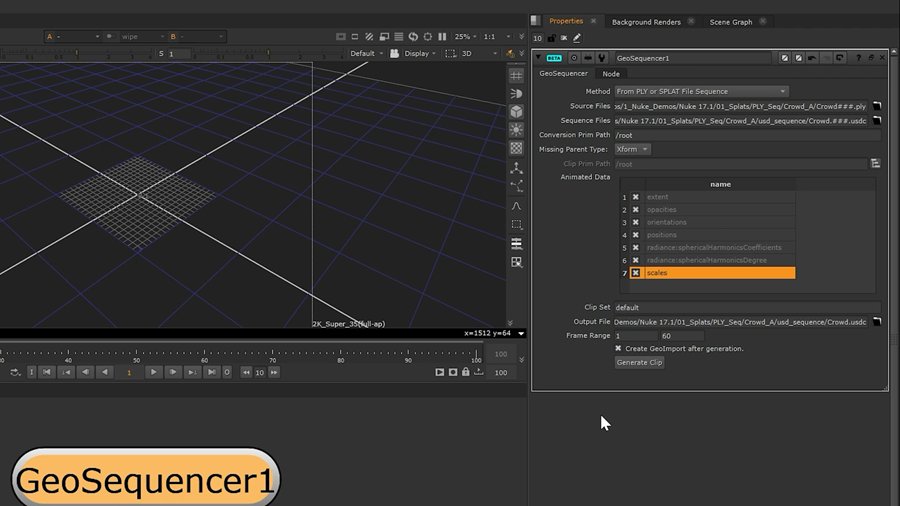
GeoSequencer includes the following controls:
• Method — selects the type of source sequence being read and populates the node accordingly.
• Source Files — defines the files to be converted.
• Sequence Files — the output path for the generated USDC sequence files.
• Conversion Prim Path — the USD prim path for the generated sequence.
• Clip Prim Path — select a USD prim path to make animated in the output file.
• Output File — the output path for the primary USDC file.
• Frame Range — the frame range of the source file sequence.
• Convert source files to time-samples — toggle whether or not the sequence needs time samples to be generated for USD and USDC source files.
• Create GeoImport after generation — toggle automatic creation of populated GeoImport nodes after USDCs have been generated.
• Generate Clip — generates the USDC file.
Learn more about Working with Animated Splats.
GeoExport support
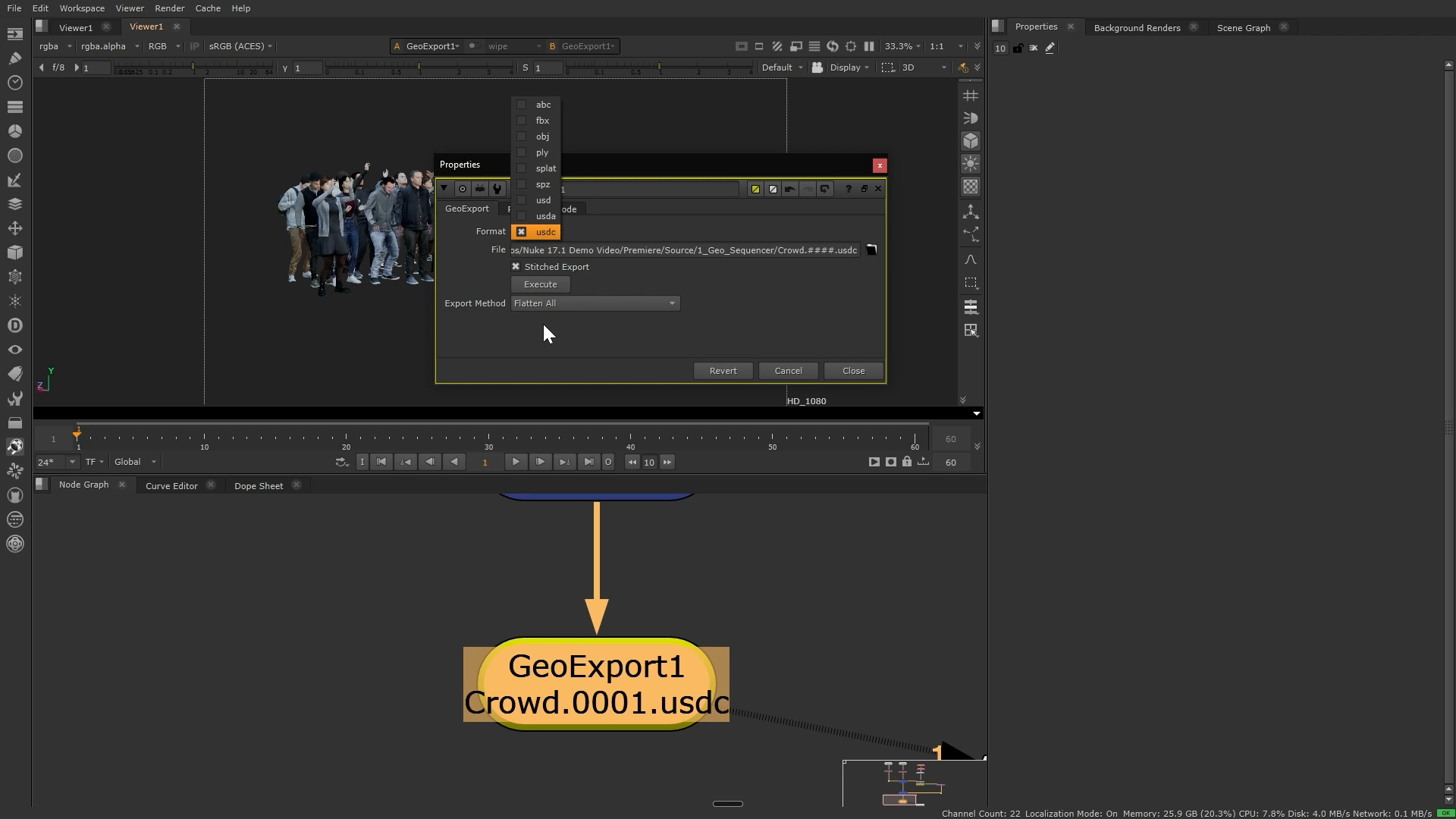
Splats can now be exported using .ply, .splat, and .spz formats, in addition to .usd, .usdc, and .usda, with the GeoExport node. This means that you can manipulate your splat sequences and output them in the format required for use in your wider pipeline.
Learn more how to Export From Your Scene in the 3D system.
3D System
Hydra 2.0 support
Access the same production renderers as the rest of your 3D pipeline, and cut down on costly rerenders for minor changes, with Hydra 2.0 support in the 3D viewer and the new GeoRender node.
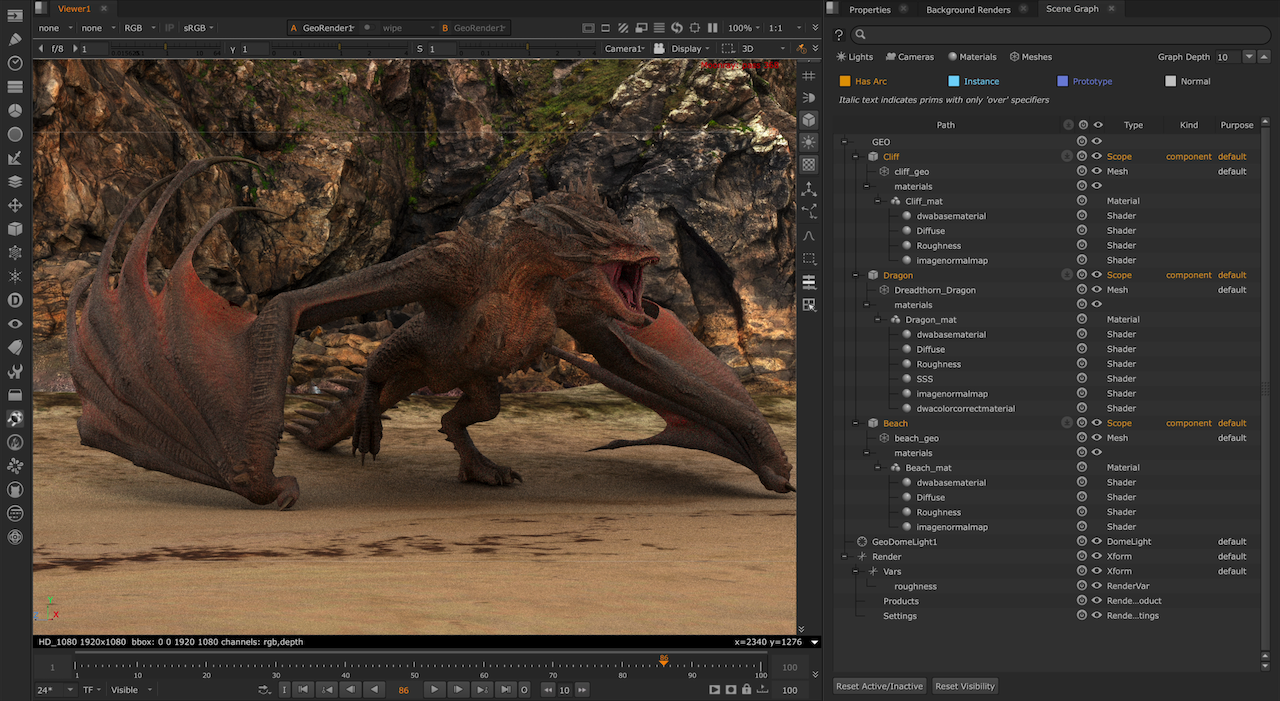
Preview render delegates, such as Moonray and Renderman, in the 3D viewer with Hydra 2.0 support for greater control over the display of your 3D scene, and matching the output of your other 3D tools.
Learn more about Hydra in the 3D Viewer.
GeoRender node
Use the new GeoRender node to render your 3D scene in Hydra 2.0. Output the passes available in your delegate, such as Normals and Depth, directly in Nuke for improved integration of changes made to your USD scene.
Learn more about Rendering with GeoRender.
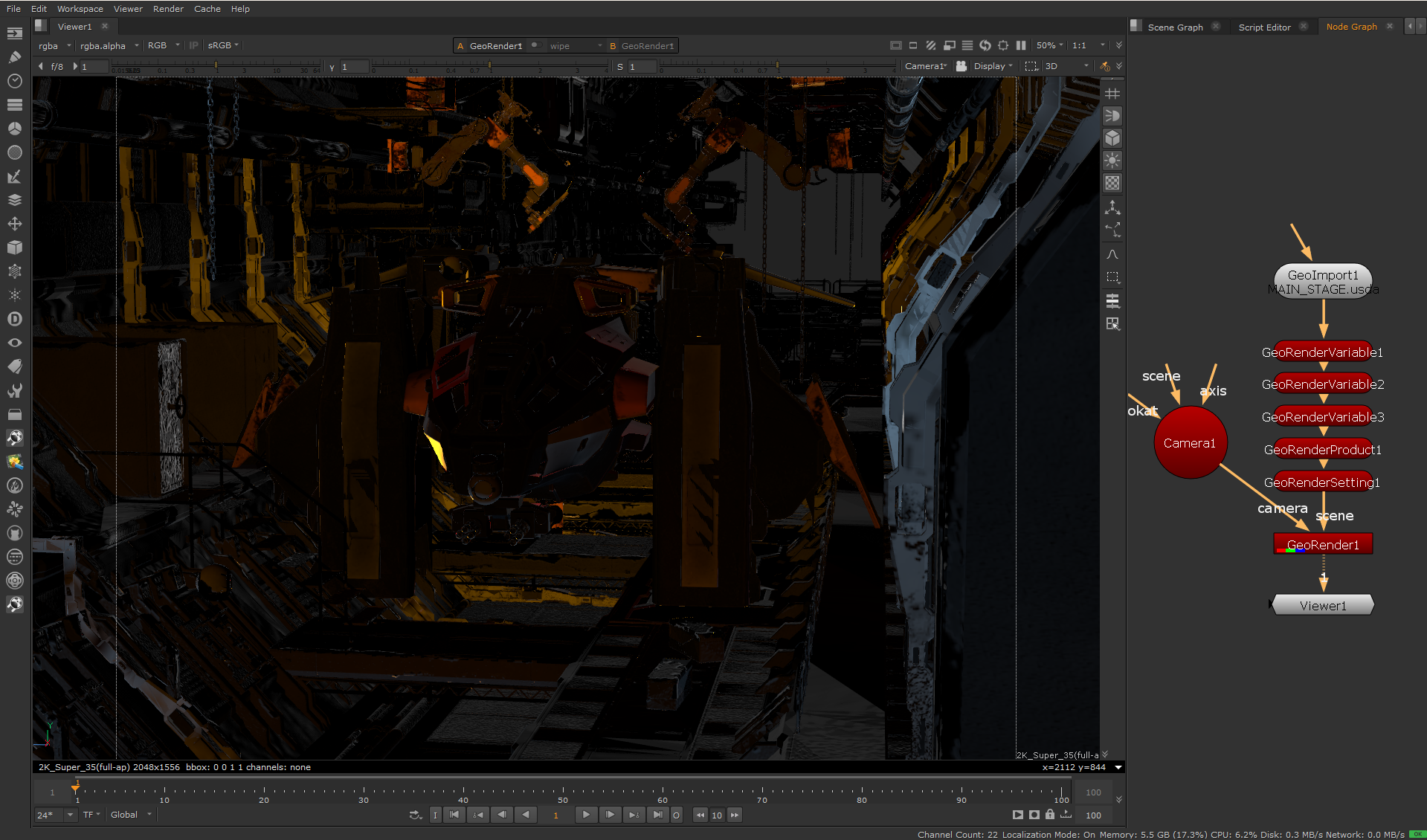
Adjust how your GeoRender Outputs and Settings are populated with new render settings nodes.
• GeoRenderSetting — change settings specific to each renderer, and specify which RenderProducts will be used.
• GeoRenderProduct — specify a collection of RenderVariables that the delegate will produce.
• GeoRenderVariable — specify individual renderer outputs, such as a given AOV like Depth or Beauty.
Read more about Creating and Editing Render Settings.
3D Viewer UI updates
Quickly change your viewer display, including USD Display Purposes, Light Setup controls, and 3D view options, with the new Display menu in the 3D Viewer.
Instantly toggle your most used view options without opening the properties, with quick access updates to the 3D toolbar. Including:
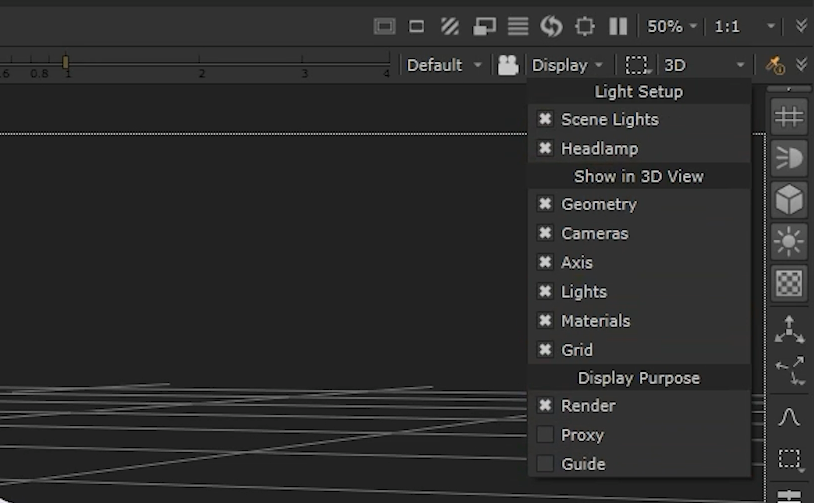
• Lights: instantly enable or disable lights in your 3D scene.
• Viewer Headlamp: toggle the headlamp for faster previews as you’re working.
• 3D grid: switch the viewport spatial grid on or off, for a clean and uncluttered workspace during review.
Read more about using the 3D Viewer at Viewing Your Scene.
Transform Space and Transform Tools have been simplified into toggles. For faster asset placement and layout changes, and instant switching between tools, without breaking your flow.
GeoExport & GeoImport updates
Export USD scene modifications, preserve existing composition arcs from imported stages, and explicitly define sublayers, with updates to import and export workflows.
GeoBreakLayer node
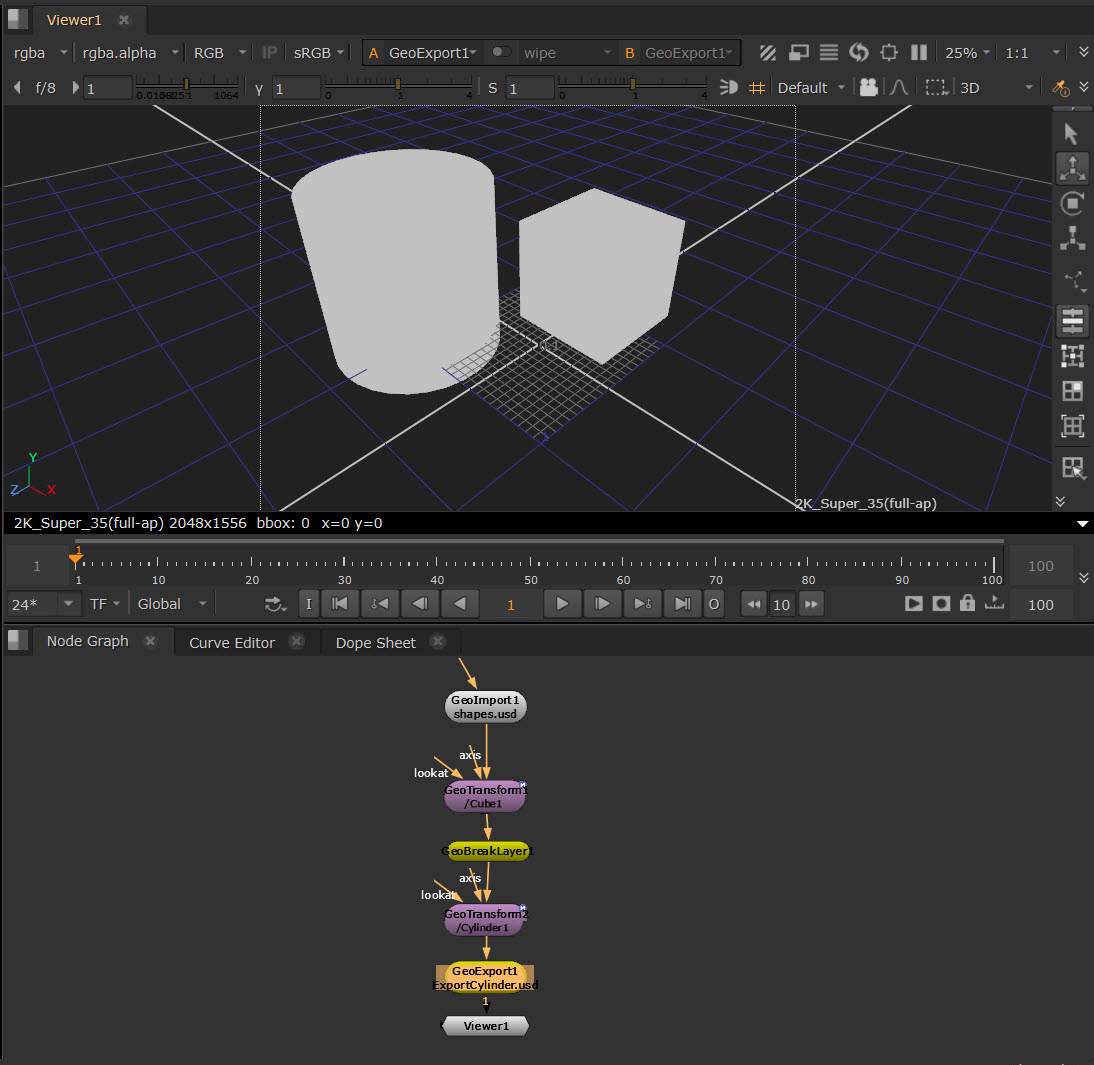
Use the new GeoBreakLayer node to remove changes set upstream when exporting USD stages, and to export a sublayer file which only contains certain changes in your Node Graph as ‘overs’ when combined with the GeoExport node's Flatten Sublayers Keep References option.
Export scene modifications
Verify your exports, and work with sublayers containing exported ‘overs’, with GeoImport’s new support for visualisation of ‘over’ prims in the scene graph. You can also use GeoImport as a GeoBreakLayer node itself, with the new Act as Layer Break checkbox.
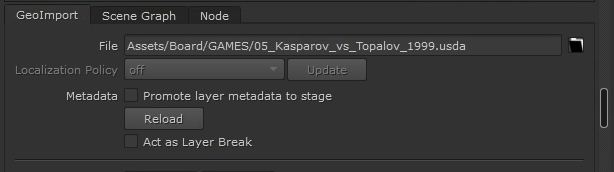
Read more about exporting sublayers as ‘overs’ in Export From Your Scene.
GeoExport updates
View export progress and reduce memory usage when exporting large animated scenes with updates to GeoExport. Which now uses a stitched export workflow by default, exporting frames individually and then stitching together in a single file.
The GeoExport node now also supports OBJs and FBX files.
ScanlineRender2 Cutouts
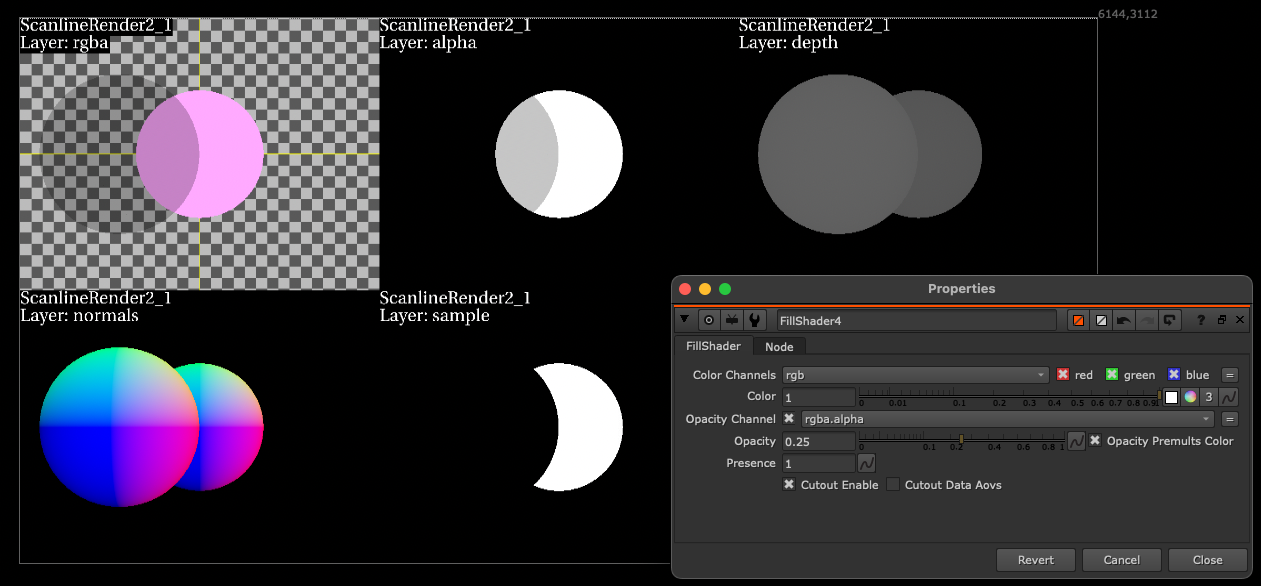
Create physically accurate holdouts and cleanly isolate objects with the new cutout controls for ScanlineRender2 and the BasicSurface, ReflectiveSurface, FillShader, ConstantShader, and SurfaceOptions shader nodes.
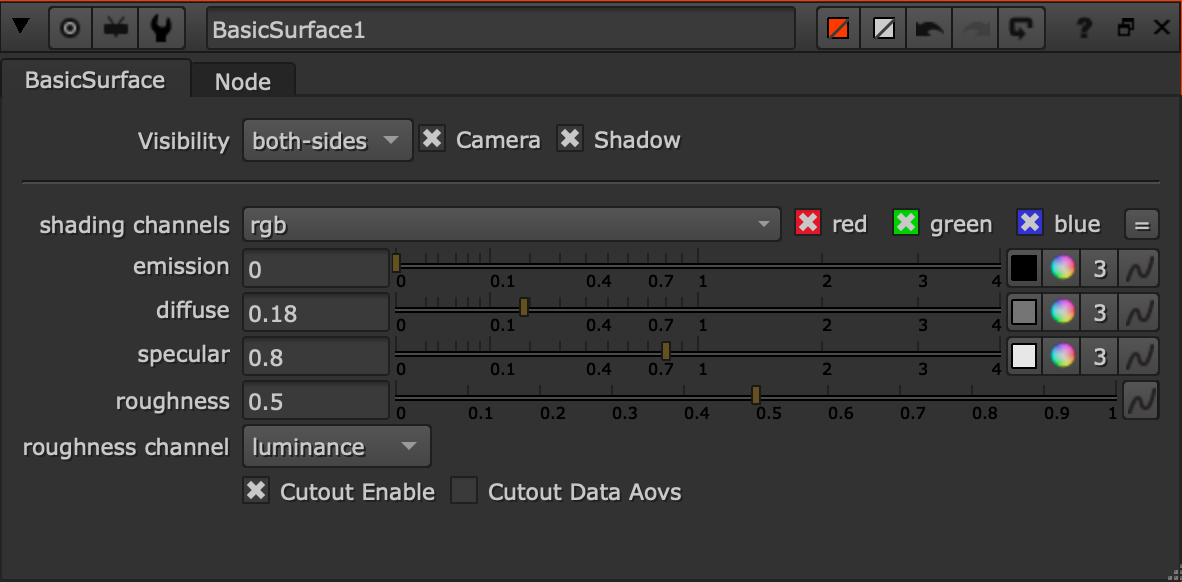
Set an object to cutout mode to convert it into a holdout with Cutout Enable, preserving alpha and opacity data while acting as a cutout for surfaces behind it. Control whether depth and other data AOV channels are also cut out with Cutout Data AOVs.
Read more about Rendering in the New 3D System.
Review
Version Compare
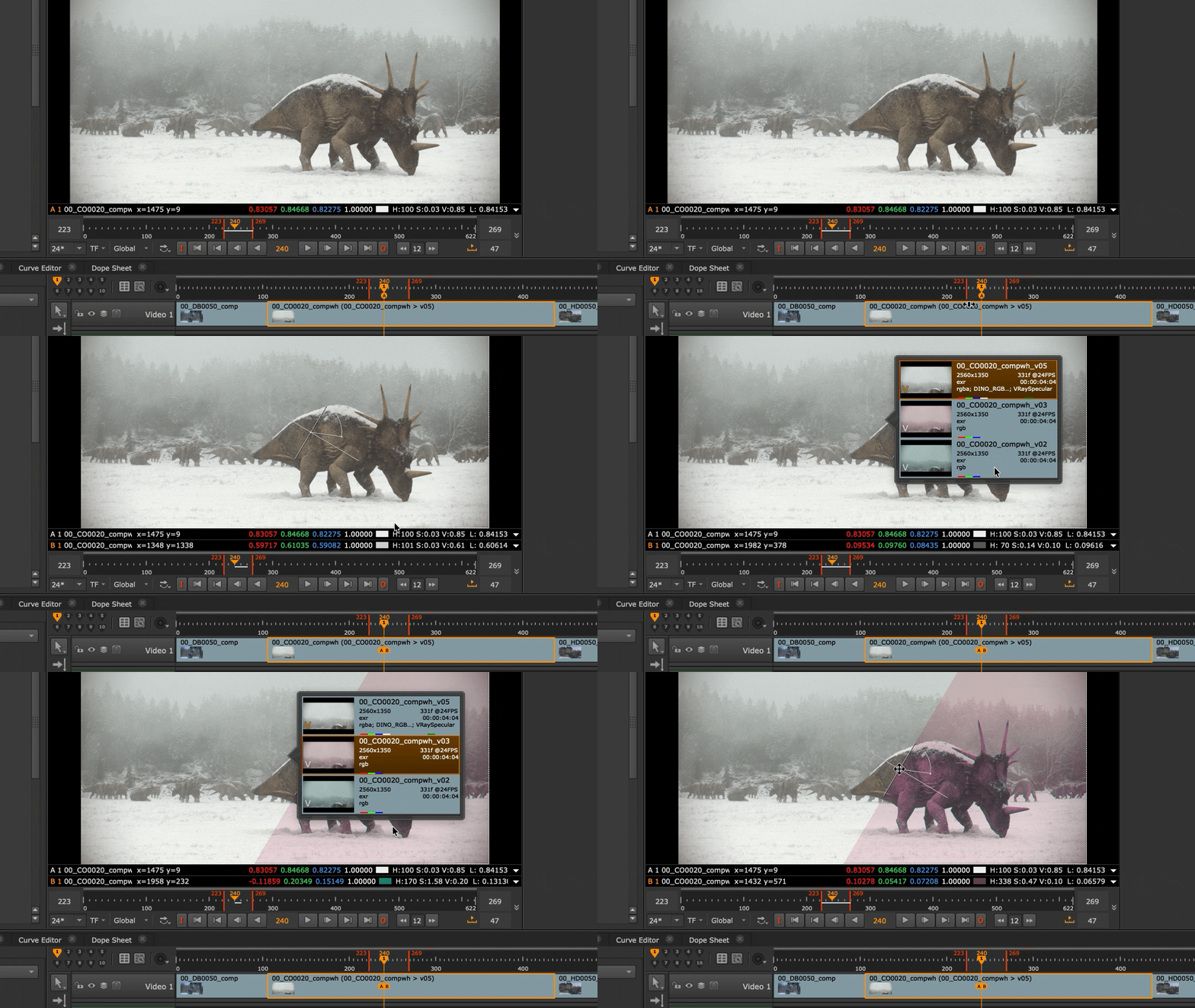
Compare shot versions in the Viewer directly from the timeline, without disrupting dailies or rebuilding edits. Version Compare mode is automatically enabled in the Nuke Studio, Hiero, and HieroPlayer timeline when both viewer buffers are assigned to the same track.
Read more about Comparing Versions on the timeline.
Sequence-aware Contact Sheet
Updates to the Nuke Studio, Hiero, and HieroPlayer Contact Sheet transform it into a sequence-aware review surface and eliminate the need for time-consuming manual setup.
Per-sequence Contact Sheet
Each sequence now maintains its own Contact Sheet, saved with the project. Change sequence and your layout switches automatically, reopen a project and every Contact Sheet restores exactly as you left it.
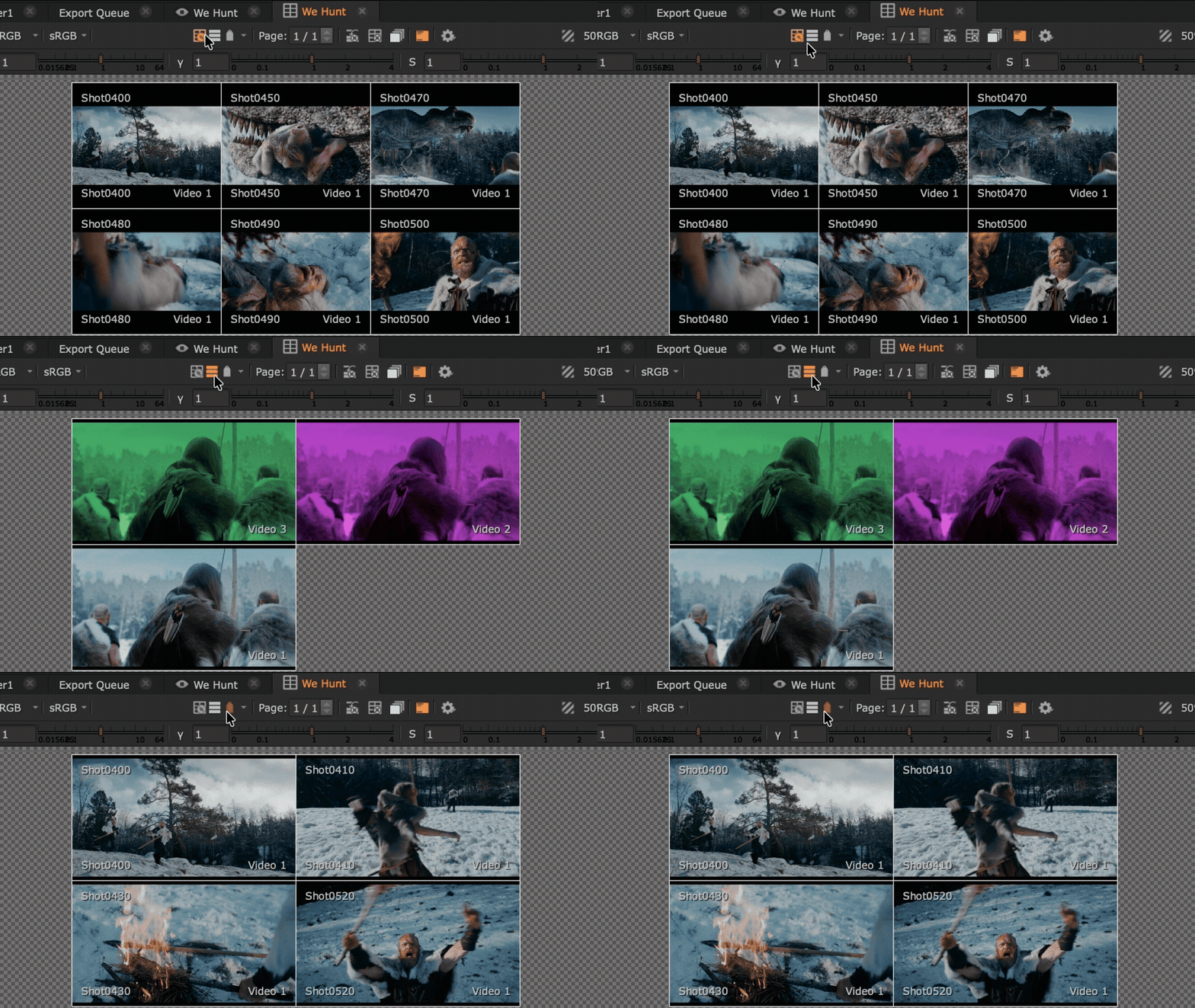
Load timeline tracks as cells
Tracks Mode instantly converts all visible timeline tracks into cells with one click — streamlining loading of plates, layout, lighting, and comp passes into the Viewer for review without manual dragging or routing.
Enable Show Tracks for playback tied to the sequence. This syncs the sequence time and Contact Sheet time, updating the Contact Sheet in real-time as you scrub through the timeline.
Please note: Show Tracks is available in Nuke Studio and Hiero only.
HUD controls
View important shot metadata straight from the Contact Sheet, with new Heads Up Display options. Enable the HUD within the Contact Sheet for a customizable per-cell overlay showing version number and clip, track, shot and layer names — with full legibility maintained at any zoom level.
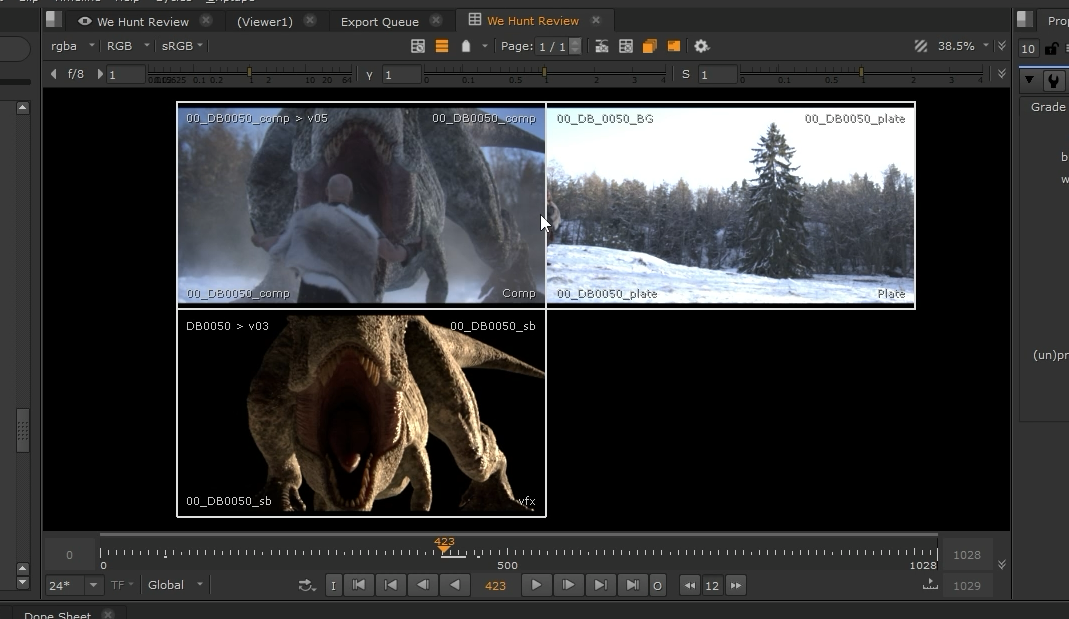
Use the custom user-level settings as well as project-level overrides to assign data to specific corners, edit the text size and color, and quickly toggle the HUD display on or off. The information displayed in the corner of each cell can also be customized with TCL expressions.
Connect with the Python API for full integration into your pipeline automations.
Compare shots in place

Use the new Stack View option to collapse the grid to a single full-frame cell at a time. This means you can step through shots with the hotkeys to easily compare iterations in place — quickly spotting subtle differences and reducing eye strain.
Learn more about the Contact Sheet in Nuke Studio.
Improved scaling fidelity
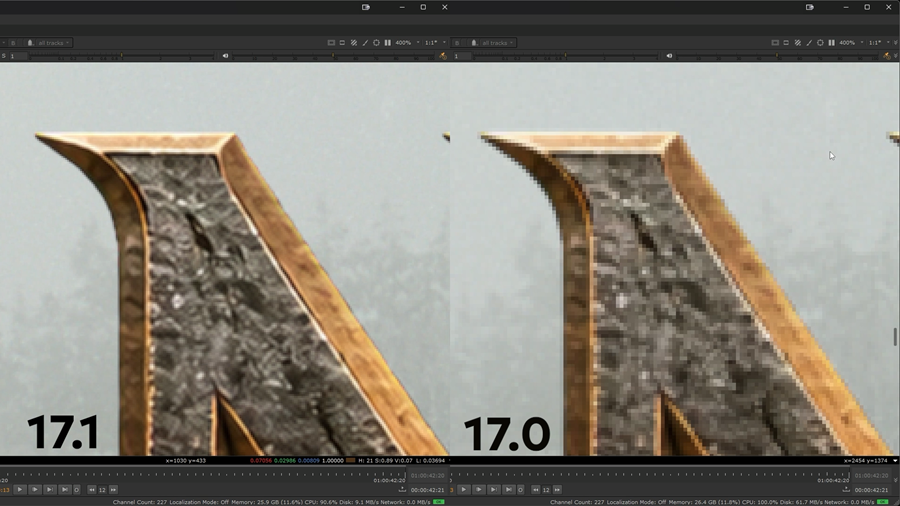
Experience high-quality review — from the timeline through to finals — without compromising on performance. The legacy transformation filtering has been replaced with modern Bilinear filtering across the Sequence, Soft Effects, Viewer, Monitor Out, and Quick Export. For superior image fidelity during review in Nuke Studio, Hiero, and HieroPlayer.
Monitor Out Interactive Mode
Change your workspace layout without compromising preview image fidelity. Monitor Out Interactive Mode separates the resolution output of external broadcast monitors from the Nuke Viewer to bypass its pixel limits. Eliminating ‘layout-induced blur’ on the broadcast monitor when the GUI viewer is small or constrained by other panels.
Automatic fit-to-width resizing ensures correct image framing and eliminates unnecessary cropping on the external display.
Read more about Monitor Output in Nuke Studio (NDI - SDI/HDMI).
Annotations
Shapes tool
Use the new Shapes tool to add rectangles and arrows to create cleaner, more precise annotations, without the need for freehand drawing.
Quickly activate the Shapes tool with the E hotkey and choose between rectangles for framing highlighting areas and framing, and arrows for precise callouts, specifying lighting and movement direction, etc.
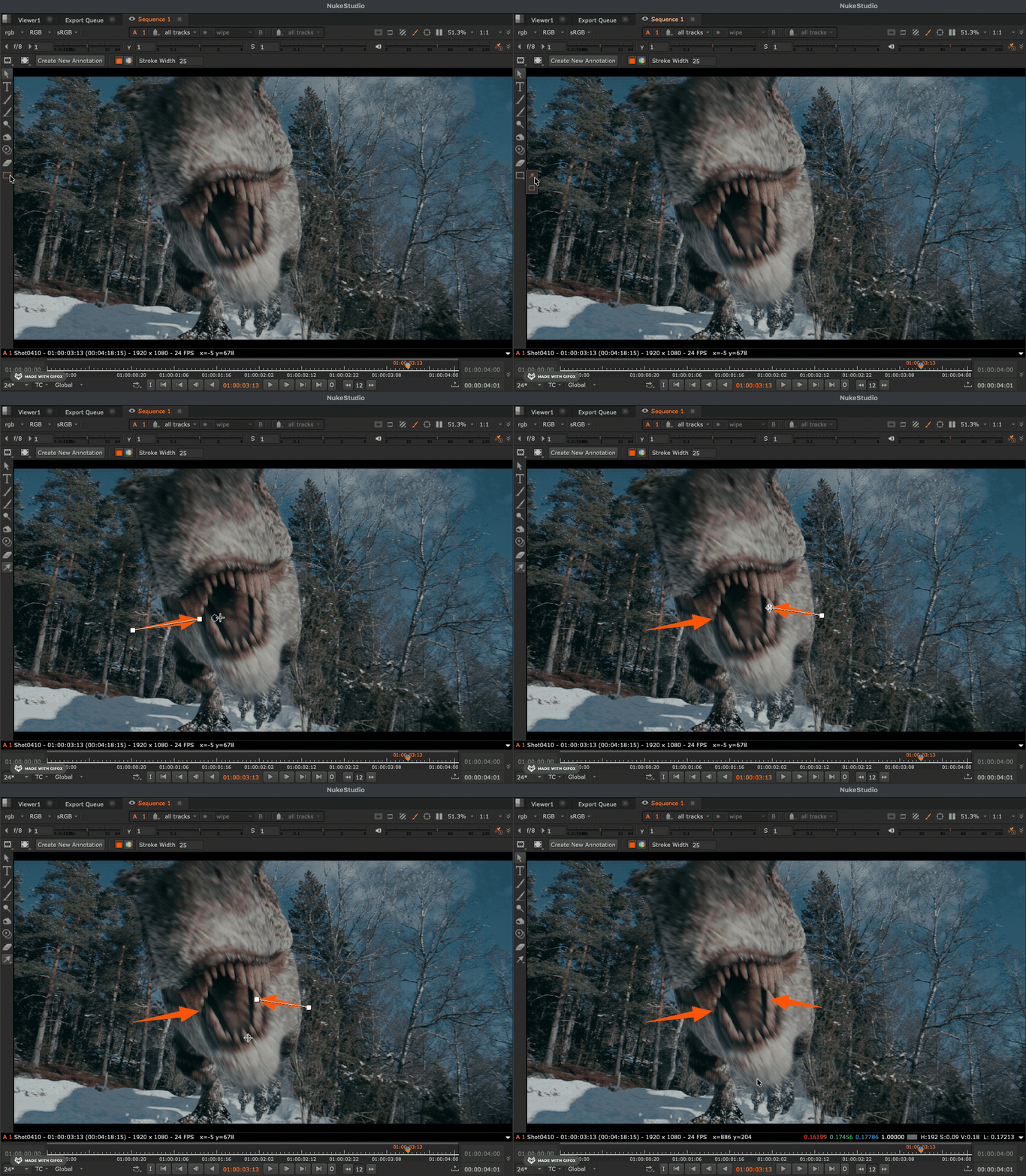
Customize your annotation shapes with options including:
• Transform, rotate, and scale your vector-based shapes without any impact on quality.
• Control the look of your shapes with stroke width, stroke color, and fill color.
• Customize the opacity of your shapes, with additional 50% transparency quick-toggle for highlighting areas without hiding details.
Create new shapes-based workflows or integrate the Shapes tool into your existing annotations workflows with Python API support.
Use the new tool in combination with the new brushes and overhauled annotations tools introduced in Nuke 17.0.
Learn more about Annotations.
Burn-in custom metadata & expressions
Customize your Burn-In beyond the preset metadata list by adding your own custom text, TCL expressions, or any metadata key from the source media. For more ways to refine your workspace display and make sure you can quickly see the data you need, when you need it, in the Node Graph and Nuke Studio, Hiero, and HieroPlayer timeline.
Read more about the Adding Effects on the Timeline, Adding Burn-in Text to Exports, and Accessing Metadata Using Tcl Expressions.
Channels
Control which channels in an EXR are loaded into the Nuke channel system, and avoid reaching Nuke’s upper channel limit, with simple expression-based channel filters.
Turn off channels by preceding the pattern with - or ^ (glob only), and turn on channels by preceding the pattern with +. Turn off a pattern by preceding it with #.
Learn more about EXR options in the Read node.
Pipeline & platform
BMD Raw 5.1 support
Nuke 17.1 includes support for new metadata controls and all cameras that export BRAW files since the last SDK update, including Black Magic Cinema cameras and the URSA series.
Apple ProRes RAW format support
Apple ProRes RAW support gives the flexibility of RAW video with the performance of ProRes in a format designed for HDR content. Whether working with cinema cameras or high quality iPhone content, you can now read and process this footage directly in Nuke.
See all Supported File and Camera Formats.
ARRI Image SDK 9.0.1 and ARRI MXF 4.4.10 support
The ARRICORE codec adds the Decode Quality knob that combines input binning for ARRIRAW and proxy mode for ARRICORE.
View the full list of Third Party Libraries.
Graph Scope Variables
Variables tab UI improvements
Working in the Variables tab within the Project Settings is now faster and more intuitive with improvements to the UI.
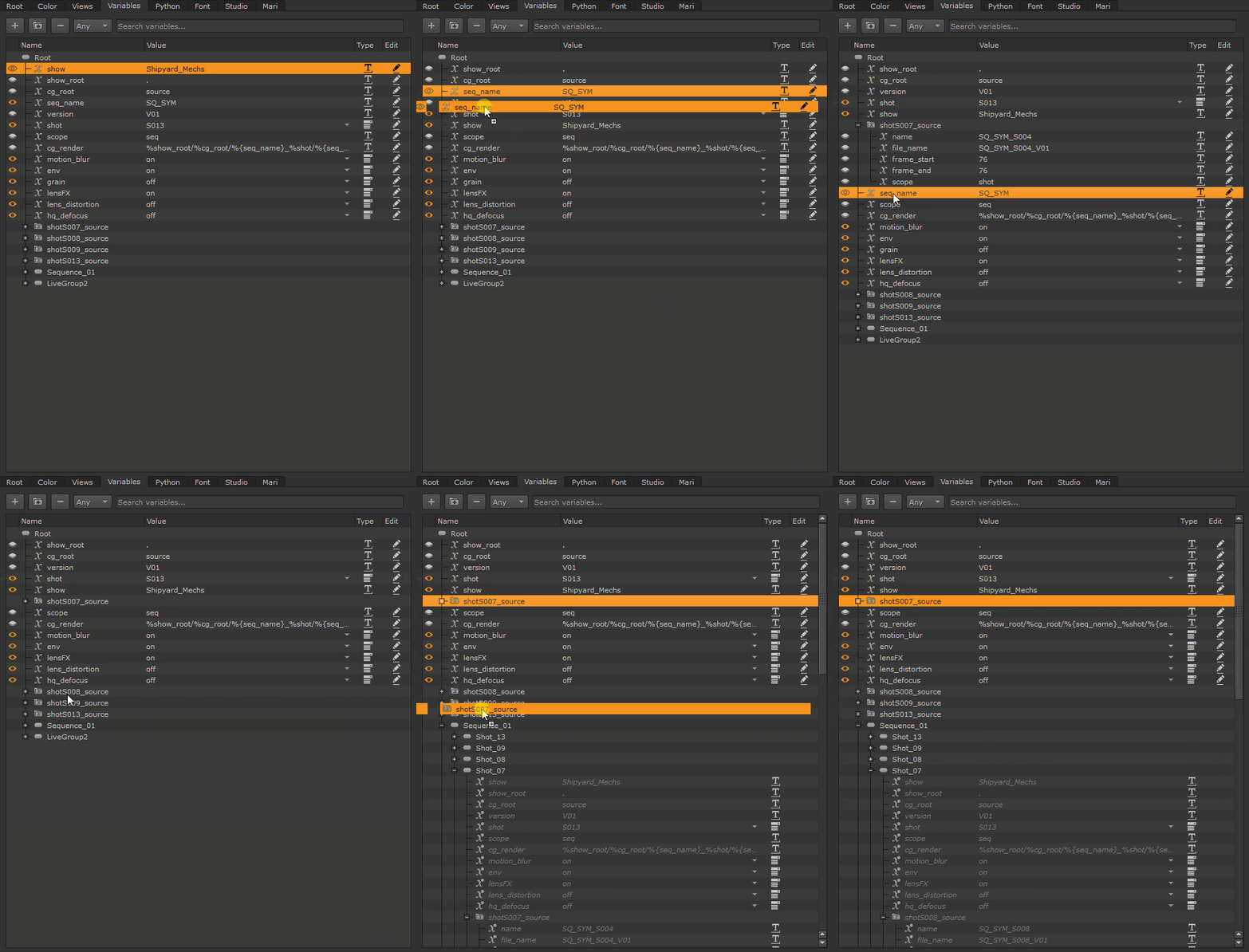
Drag-and-drop organization
Click and drag Variables for easier reordering and grouping.
Undo/redo support
Undo and redo move and reorder operations in the Variables tab of Project Settings.
Instant focus
Newly created Variables are now automatically selected so you can start editing straight away.
Session memory
Pick up where you left off with your Variable group and set ordering saved between sessions.
Learn more about Working with Graph Scope Variables.